

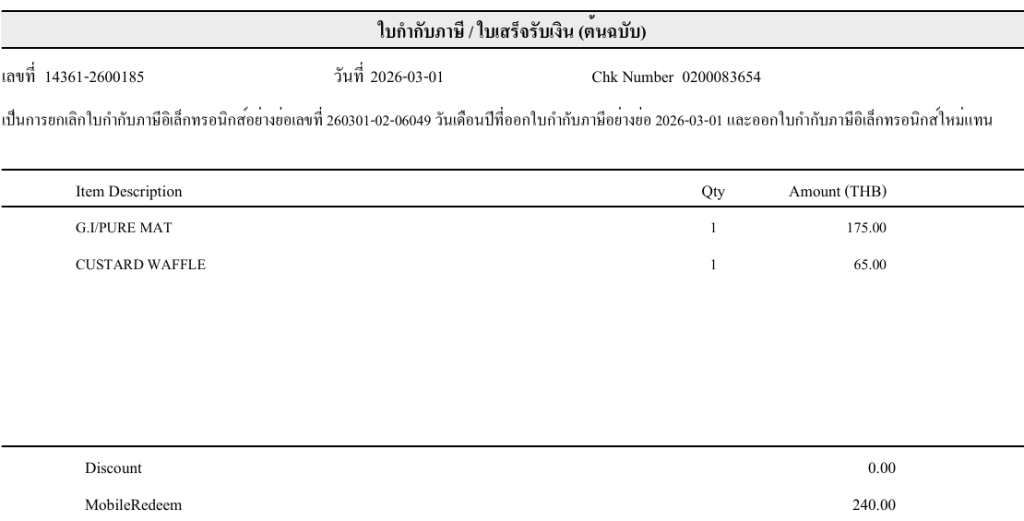
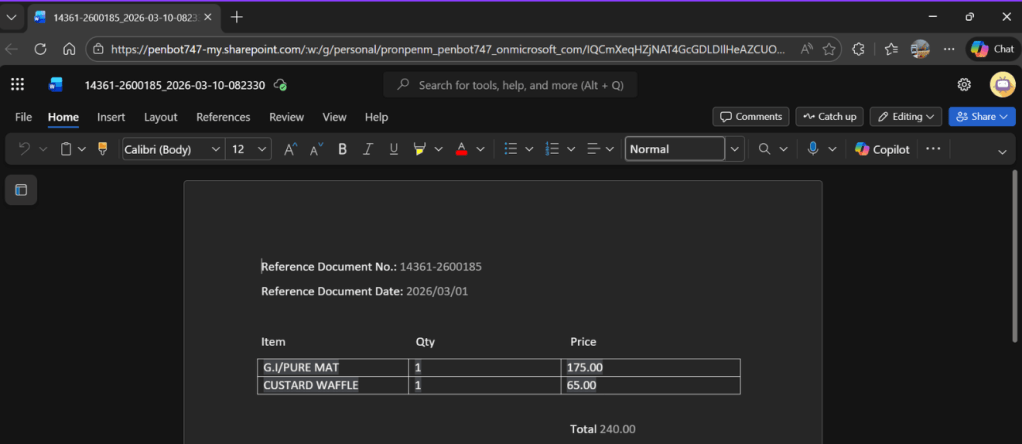
In this guide, we’ll automate a workflow to extract data from the Outlook attachment such as document number, document date, discount, item, quantity, price etc. then store data separate header level and item level and create MS Word file.
Overview
- Create OneDrive Folder
- Create MS Word Template
- Upload MS Word Template to OneDrive
- Create SharePoint List (Header level, Item level)
- Build a prompt
- Create Power Automate Cloud flow (1st flow AI Extract, 2nd flow Create document)
Create OneDrive Folder
Create 3 folders on OneDrive
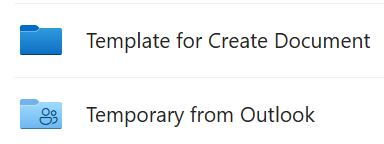
- Template for Create Document (Upload MS Word template from previous step)
- Temporary from Outlook (Store attachment file from PDF)
- Output from Template Document (Store MS Word Output after Power Automate run)

Create MS Word Template
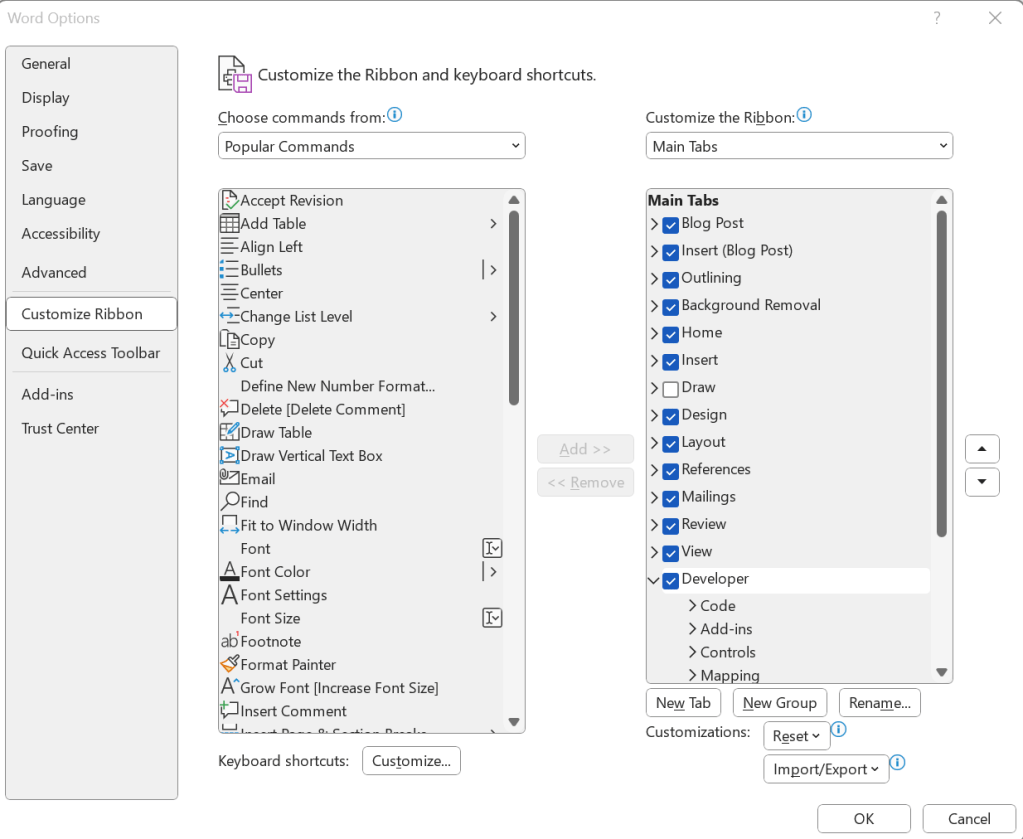
Open Developer tab
Open MS Word Desktop > Go to File > More > Options > Customize Ribbon > Select check box “Developer” > Click “OK”
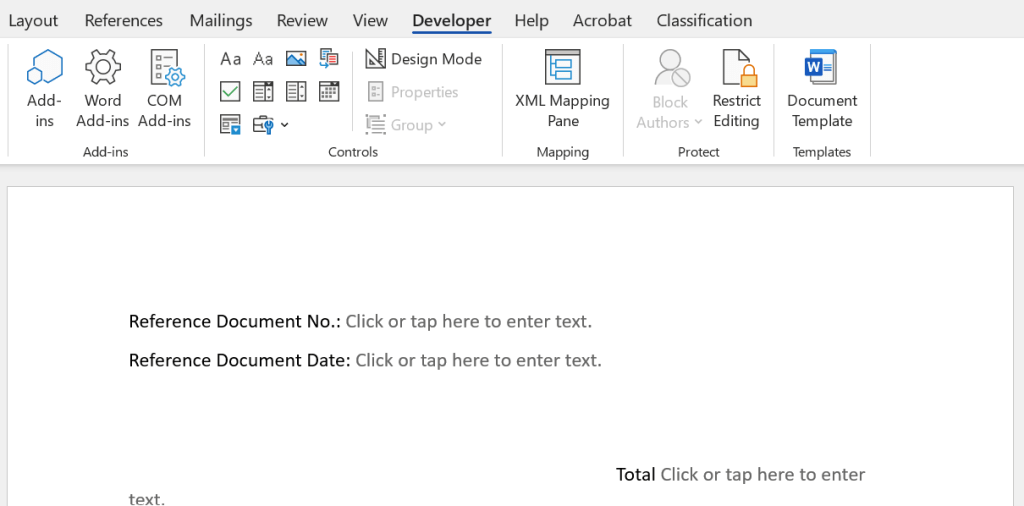
Create Template document (Header Level)
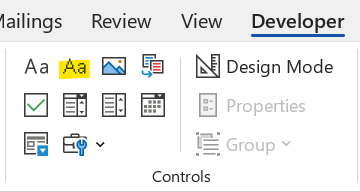
- Insert Plain Text Content Control to create dynamic fields for the following: Document Number, Document Date, Total
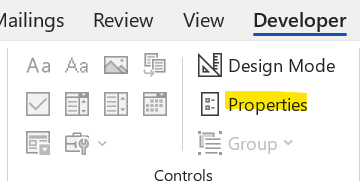
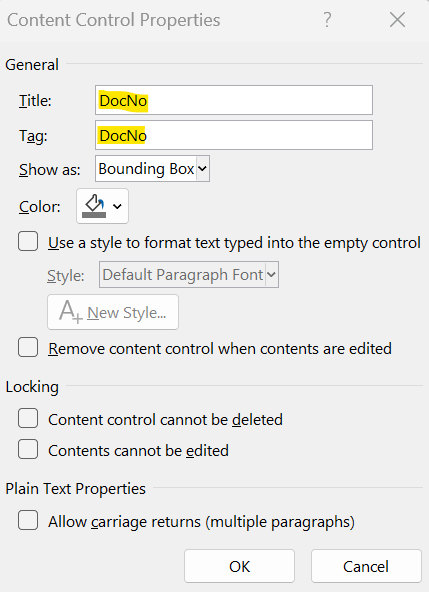
- Select each content control and open Properties.
- Set both the Title and Tag as follows: DocNo – for Document Number, DocDate – for Document Date, Total – for Total Amount
Create Template document (Item Level)
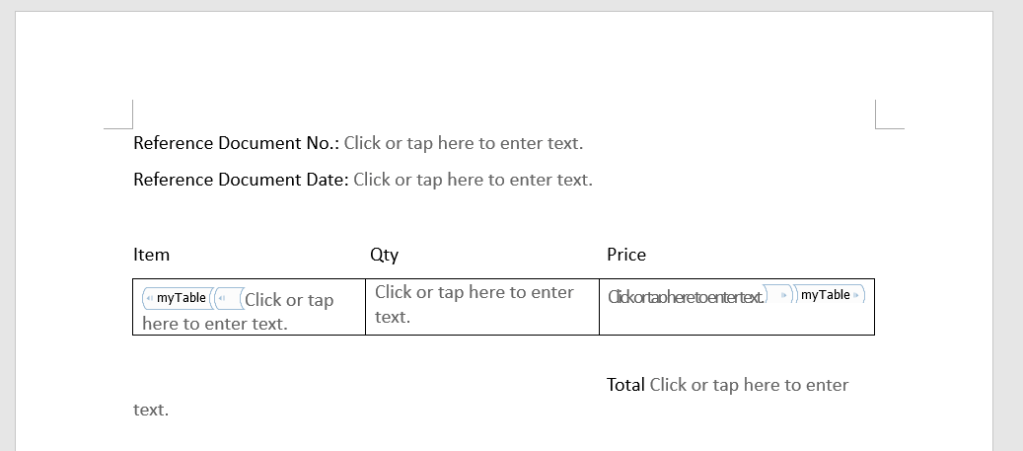
Insert Item, Qty and Price and insert table below it as per below image:
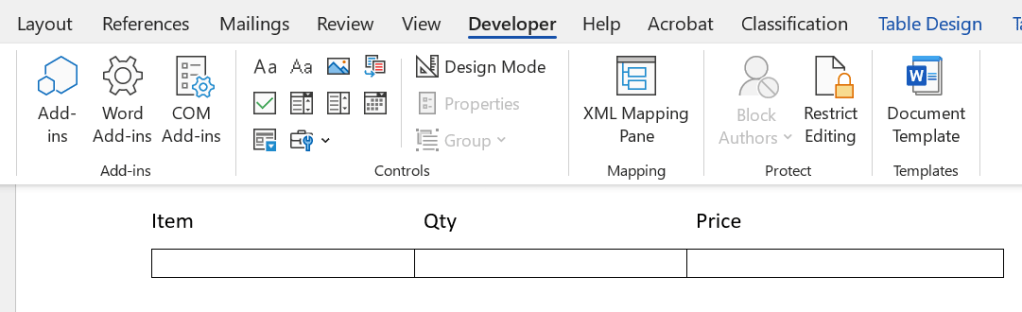
- Insert Plain Text Content Control to create dynamic fields for the following: Item, Qty and Price in each table cell
- Select each content control and open Properties.
- Set both the Title and Tag as follows: Insert Plain Text Content Control to create dynamic fields for the following: Item, Qty and Price
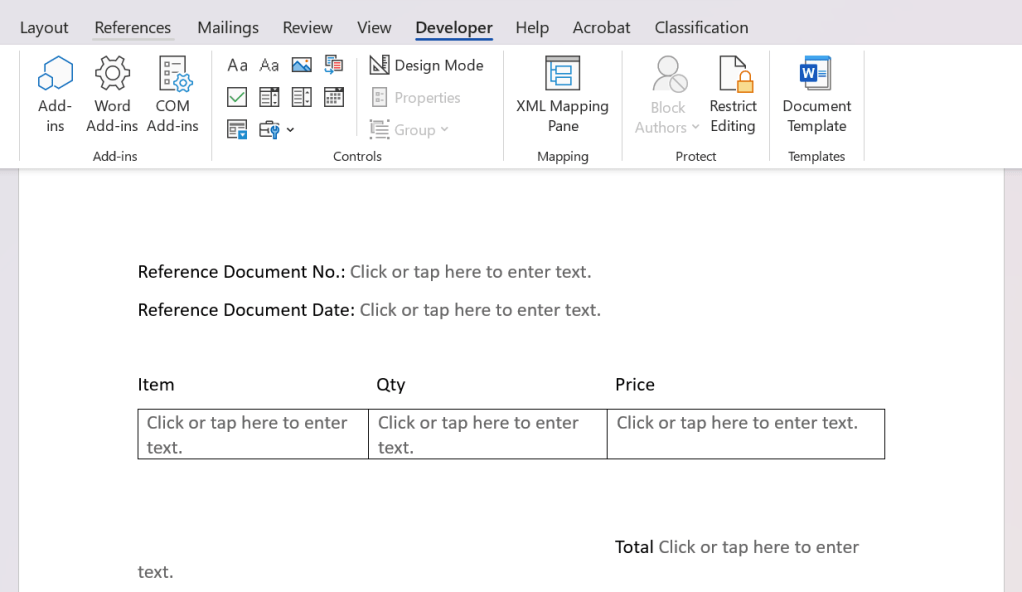
- Select all value in the table and select Properties in developer tab
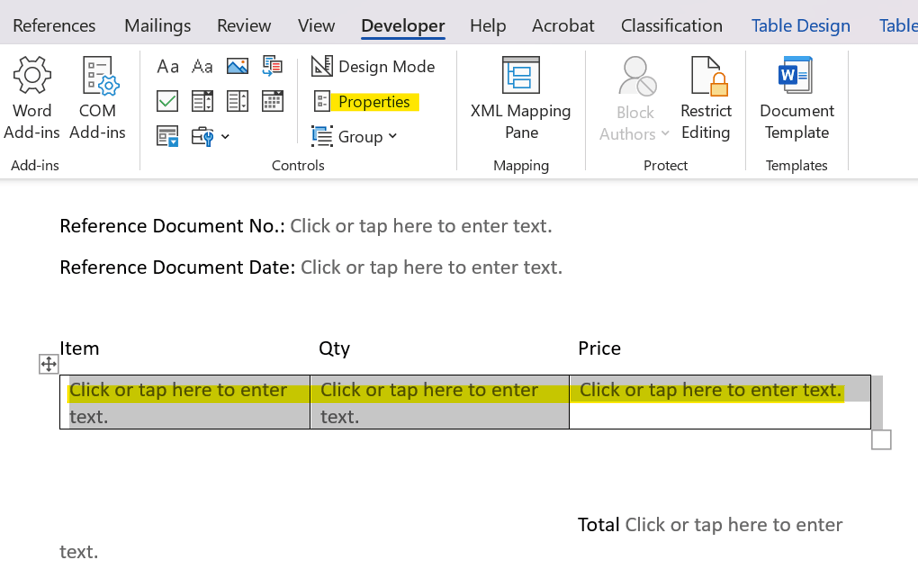
- Set both the Title and Tag: myTable
- Select Show as: Start/End Tag
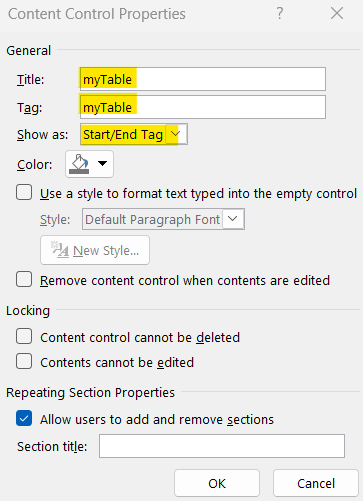
- Save MS Word and upload to OneDrive folder Template for Create Document
Create ShrePoint List
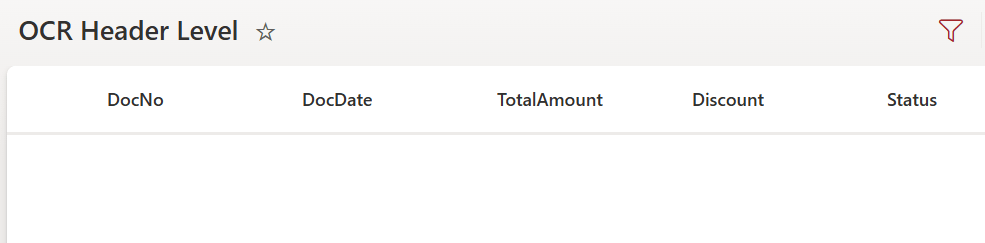
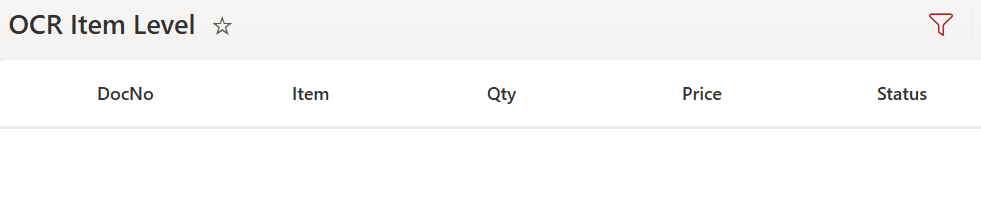
Header Level
Create column name and select data type as per below:
- DocNo: Single line of text
- DocDate: Single line of text
- TotalAmount: Single line of text
- Discount: Single line of text
- Status: Choice (New, Done)
Item Level
Create column name and select data type as per below:
- DocNo: Single line of text
- Item: Single line of text
- Qty: Single line of text
- Price: Single line of text
- Status: Choice (New, Done)
Build a prompt
Go to “Prompt” > “Build your own prompt” and type instructions as per below code block:
Extract the following fields from the invoice PDF {File} - DocumentNumber- DocumentDate (format: yyyy/MM/dd)- Discount (if any)- TotalAmount- Items (array of objects with: Description, Quantity, Amount)Return the result as clean JSON only.Do not include explanations.Do not include data types.If a value is missing, return null.Expected JSON structure:{ "DocumentNumber": "", "DocumentDate": "", "Discount":"", "TotalAmount": "", "Items": [ { "Item": "", "Qty": "", "Price": "" } ]}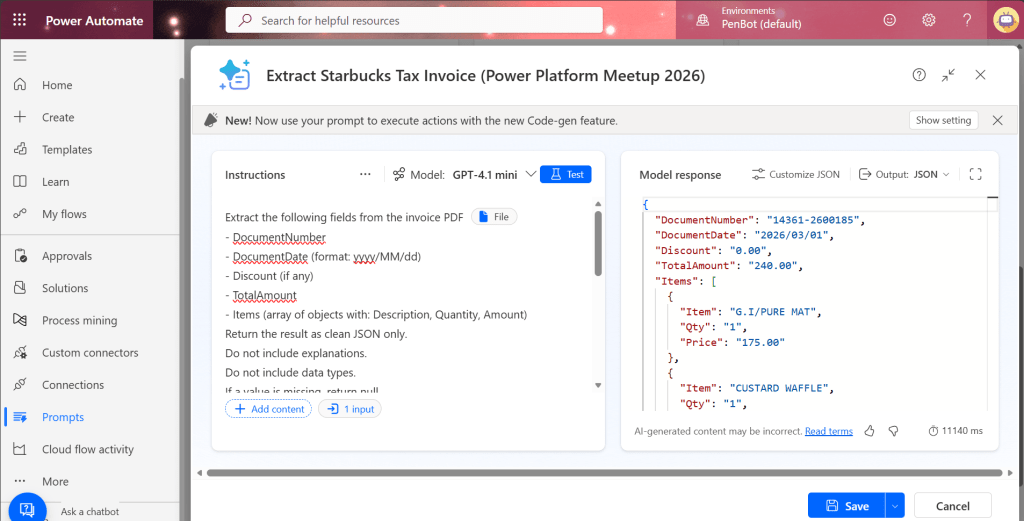
1st Flow (AI Extract)
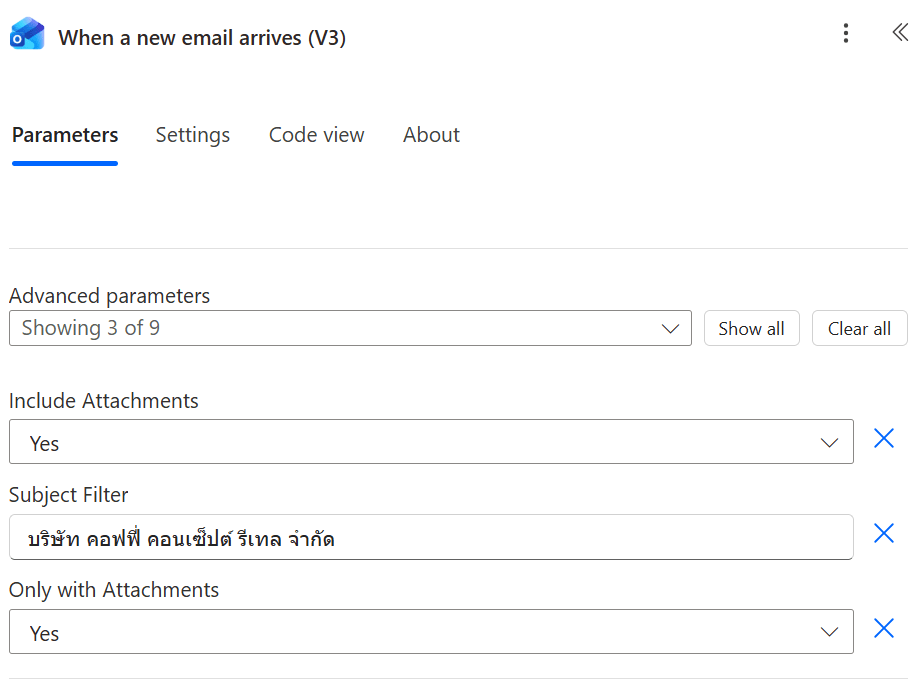
1. When a new email arrives (Outlook)
Include Attachments: Yes
Subject Filter: (as per your condition)
Only with attachments: Yes
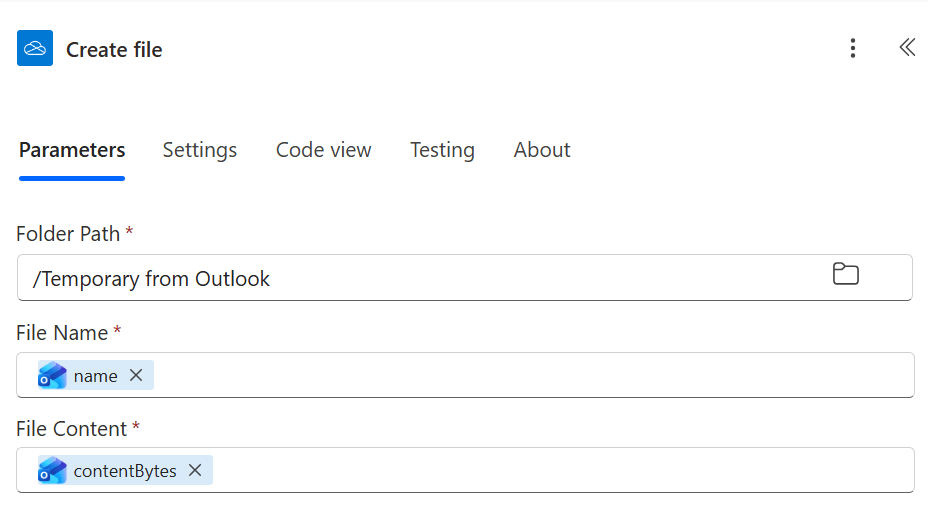
2. Create File (OneDrive)
Folder Path: (select your folder)
File name: select dynamic content ‘Attachment Name’
File content: select dynamic content ‘Attachment Content’
*Flow will create loop automatically to loop within each attachment
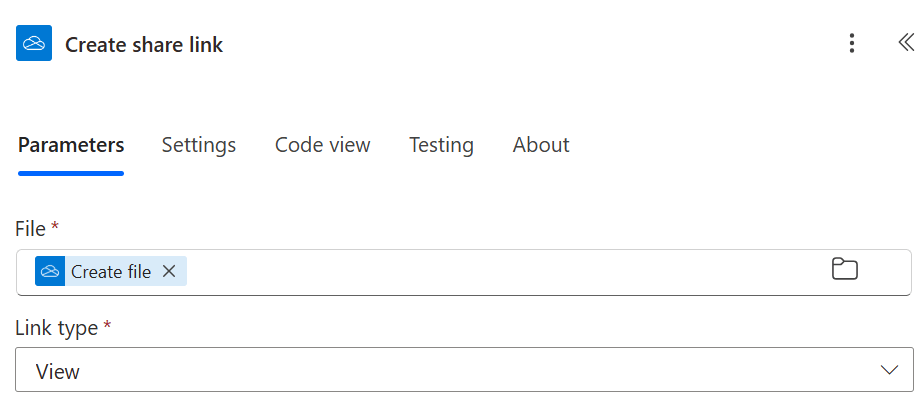
3. Create share link (OneDrive)
File: select dynamic content ‘Id’
Link type: View
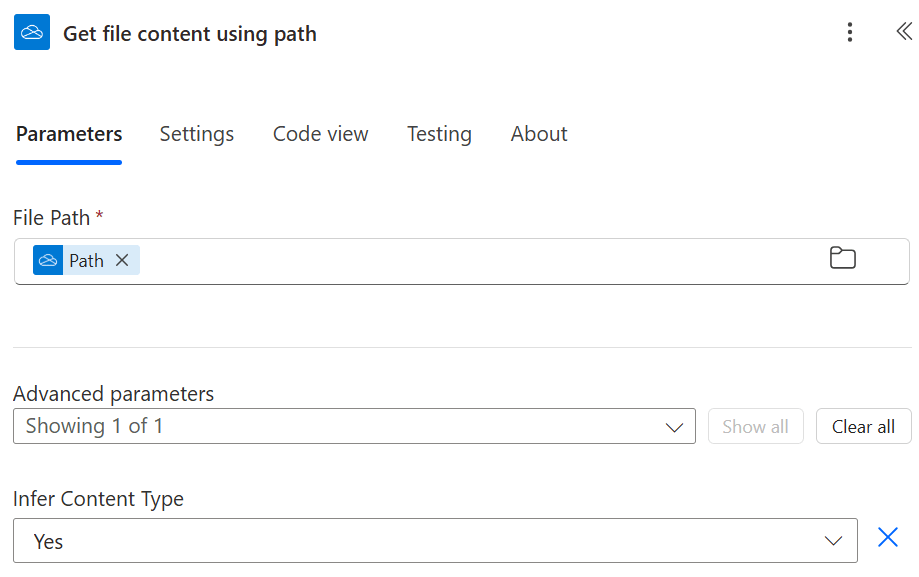
4. Get file content using path (OneDrive)
File Path: select dynamic content ‘Path’
Infer Content Type: Yes
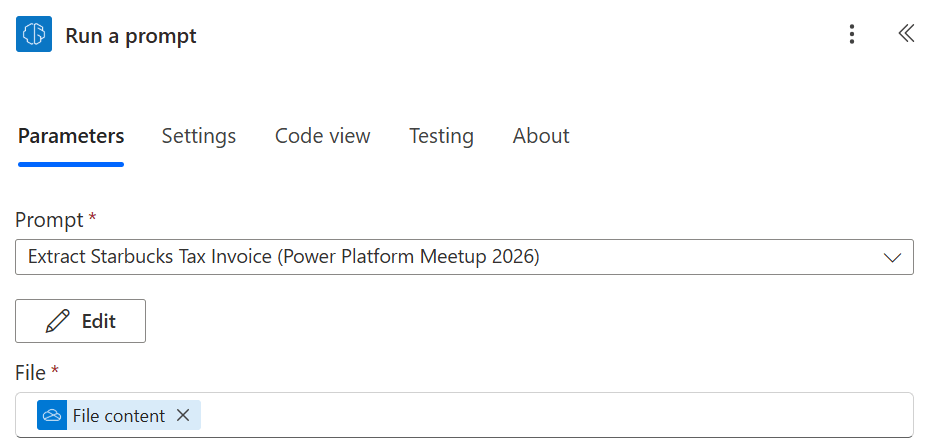
5. Run a prompt (AI Builder)
Prompt: (select your prompt)
File: select dynamic content ‘File Content’
6. Select (Data Operation)
From: select dynamic content ‘body/respones’
Map: insert expression as per below code block:
concat( 'Item: ', item()?['Item'], decodeUriComponent('%0A'), 'Qty: ', if(empty(item()?['Qty']), '-', string(item()?['Qty'])), decodeUriComponent('%0A'), 'Price: ', if(empty(item()?['Price']), '-', string(item()?['Price'])))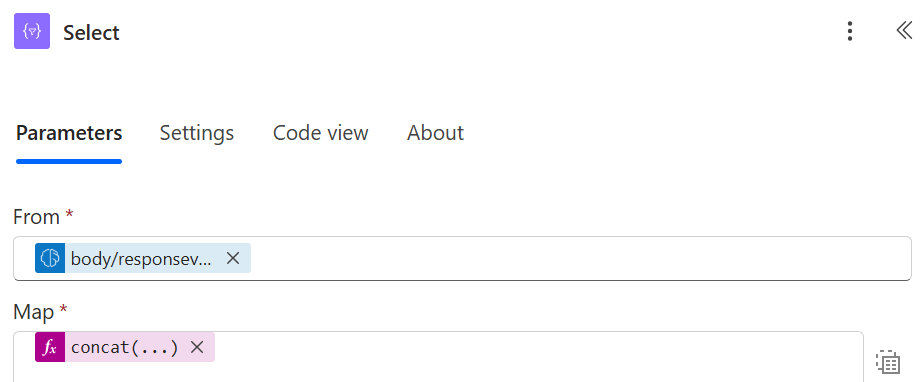
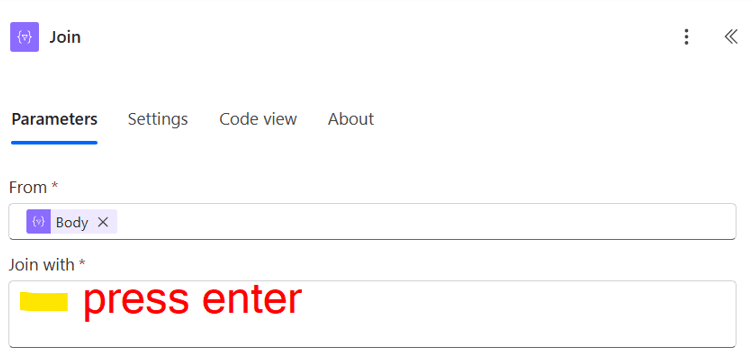
7. Join (Data Operation)
From: select ‘Output’ from select action
Join with: press ‘Enter’
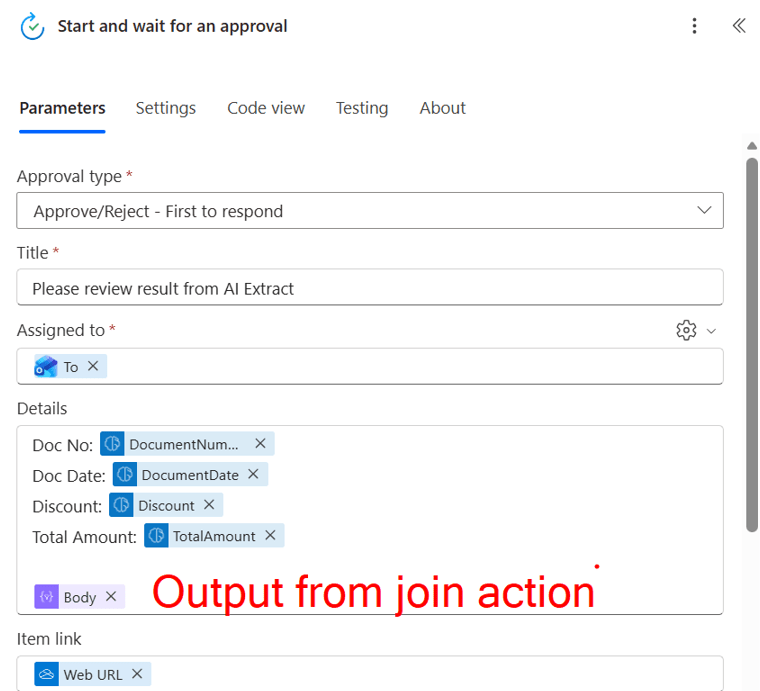
8. Start and wait for an approval (Approvals)
Set parameters as per below image, in ‘Details’ select ‘Output’ from join action:
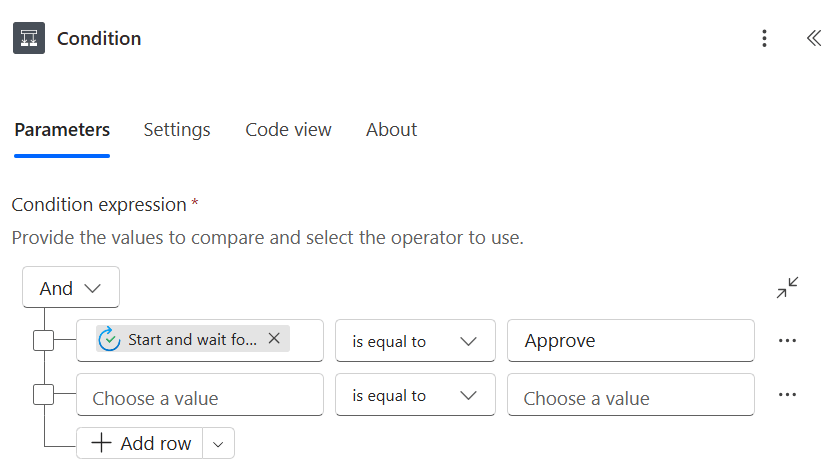
9. Condition (Control)
Set parameters as per below image:
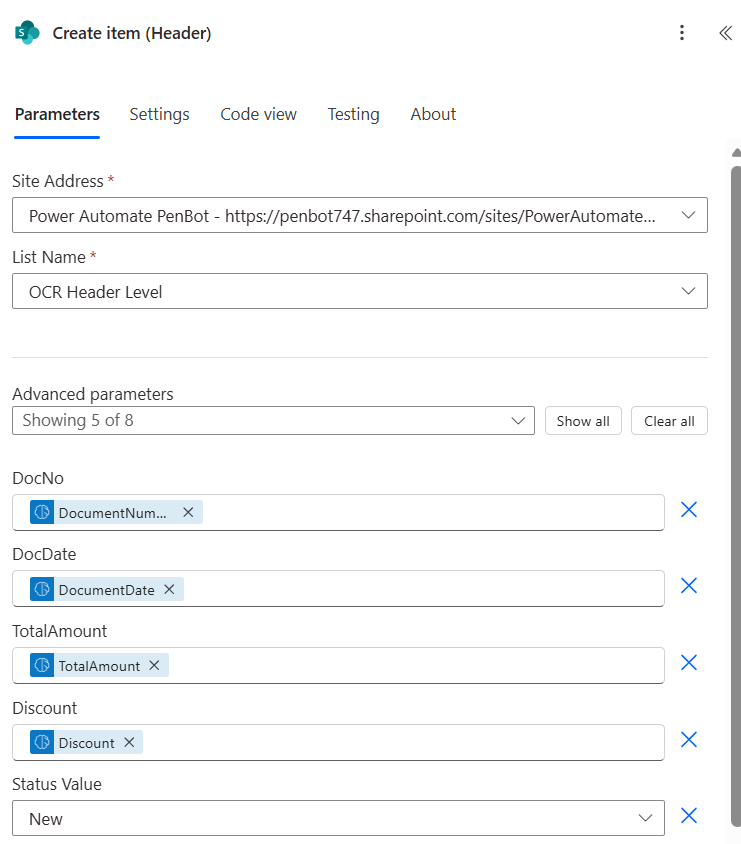
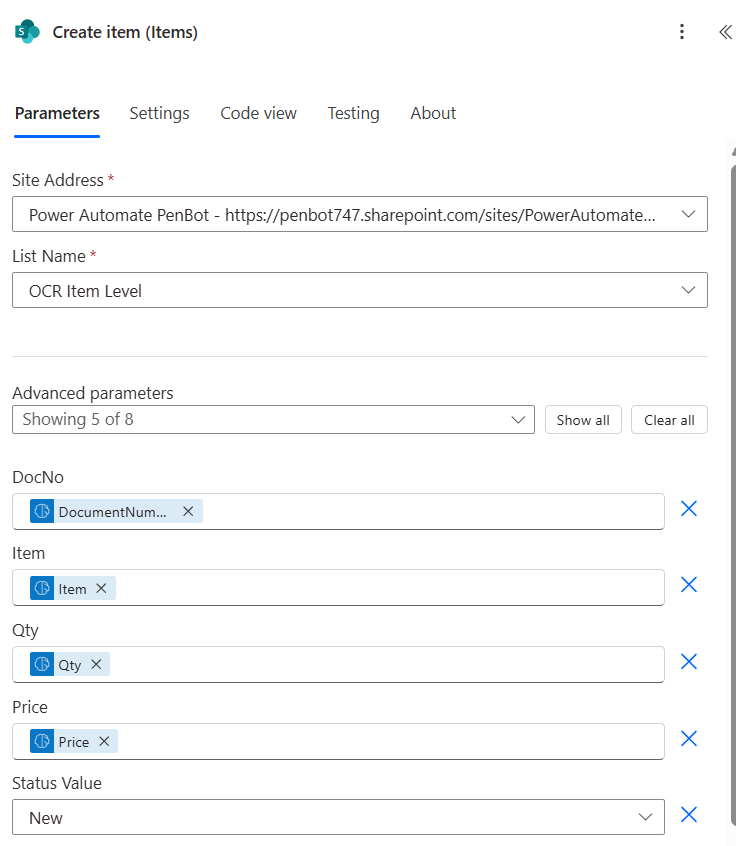
10. Create item (SharePoint)
Site Address: (select your SharePoint site)
List Name: (select your SharePoint list header level)
Map SharePoint column with dynamic content from ‘Run a prompt’ action e.g. DocNo, DocDate, TotalAmount, Discount
Status Value: select New
11. Create item (SharePoint)
Site Address: (select your SharePoint site)
List Name: (select your SharePoint list item level)
Map SharePoint column with dynamic content from ‘Run a prompt’ action e.g. DocNo, Item, Qty, Price
Status Value: select New
2nd Flow (Create Document)
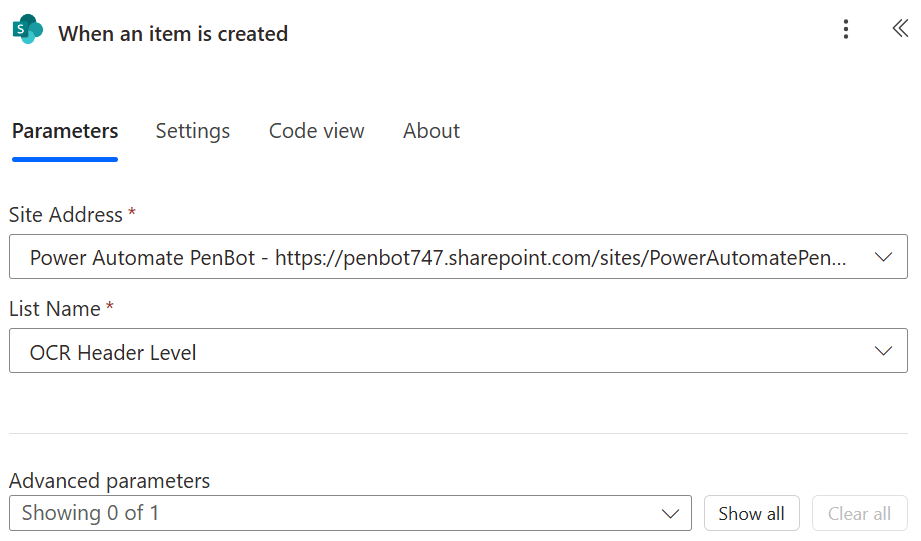
1. When an item is created (SharePoint)
Site Address: (select your SharePoint site)
List Name: (select your SharePoint list header level)
When the 1st flow create item in SharePoint list header, it will trigger the 2nd flow
2. Initialize variable (Variables)
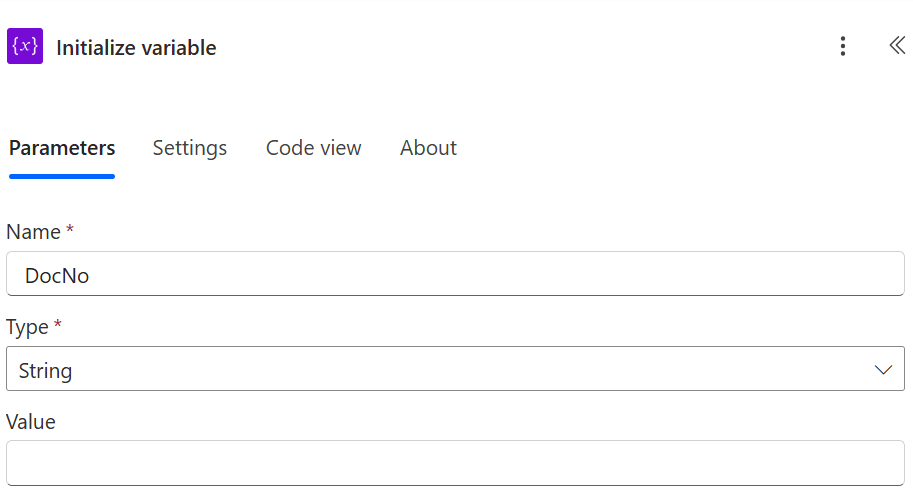
Name: DocNo
Type: String
Value: (leave it blank)
3. Get item (SharePoint)
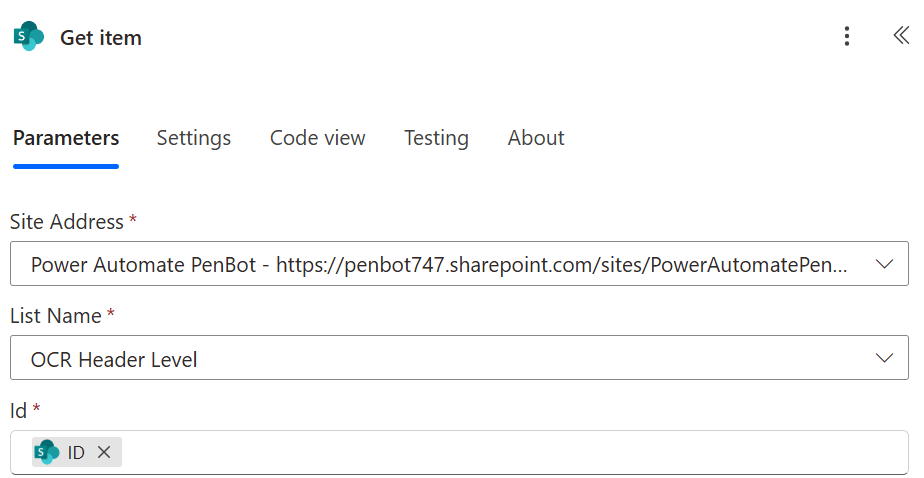
Site Address: (select your SharePoint site)
List Name: (select your SharePoint list header level)
Id: select dynamic content ‘ID’
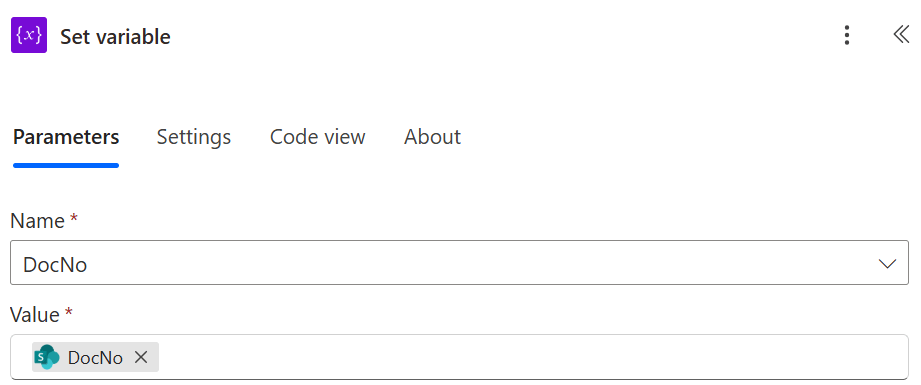
4. Set variable (Variable)
Name: select dropdown ‘DocNo’
Value: select dynamic content ‘DocNo’
5. Get items (SharePoint)
Site Address: (select your SharePoint site)
List Name: (select your SharePoint list item level)
Filter Query: type expression as per below code block
DocNo eq '@{outputs('Get_item')?['body/DocNo']}'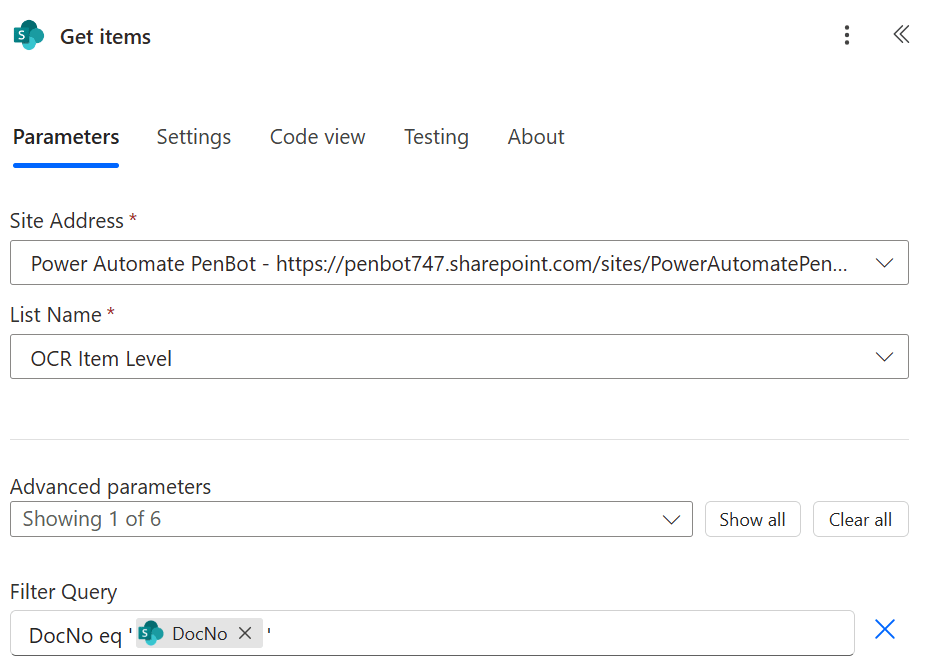
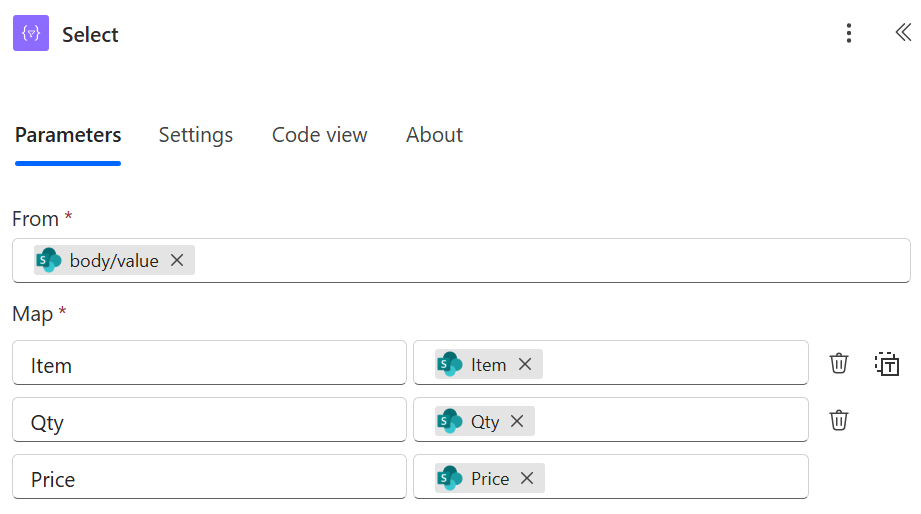
6. Select (Data Operation)
Set parameter as per below image (dynamic content from ‘Get items’ action)
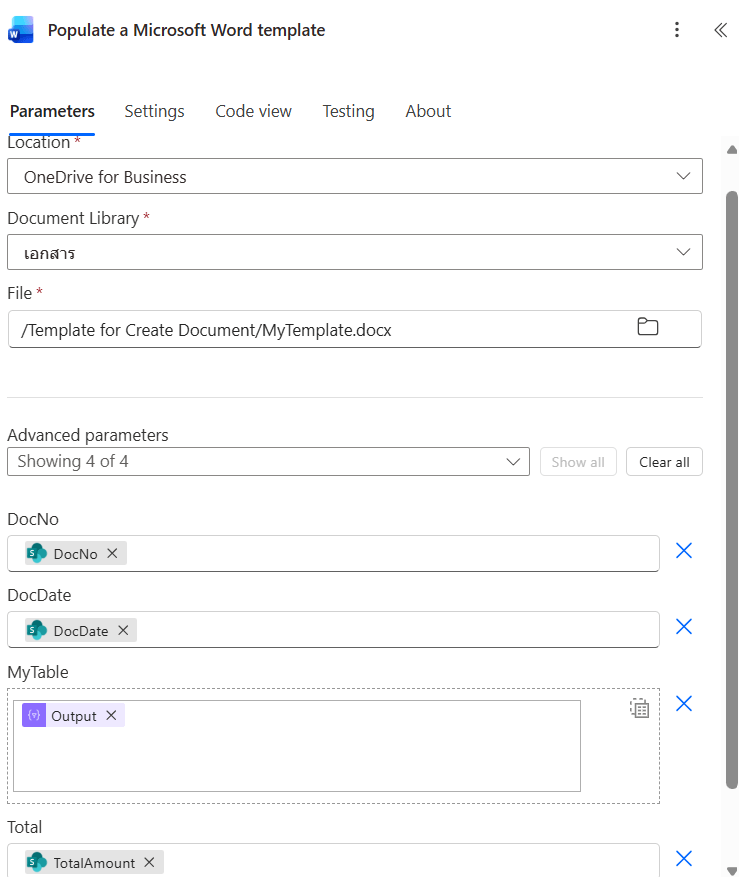
7. Populate a Microsoft Word template (Word Online)
Location: OneDrive for Business
Document Library: (select your library)
File: (select your template file on OneDrive)
DocNo: select dynanmic content ‘DocNo’ from ‘Get item’ action
DocDate: select dynanmic content ‘DocDate’ from ‘Get item’ action
MyTable: select dynanmic content ‘Output’ from ‘Select’ action
Total: select dynanmic content ‘TotalAmount’ from ‘Get item’ action
8. Create file (OneDrive)
Folder Path: select your folder Output from Template Document
File Name: type expression as per below code block
File Content: select dynamic content from ‘Populate a Microsoft Word’ template action
@{variables('DocNo')}_@{formatDateTime(utcNow(),'yyyy-MM-dd-HHmmss')}.docx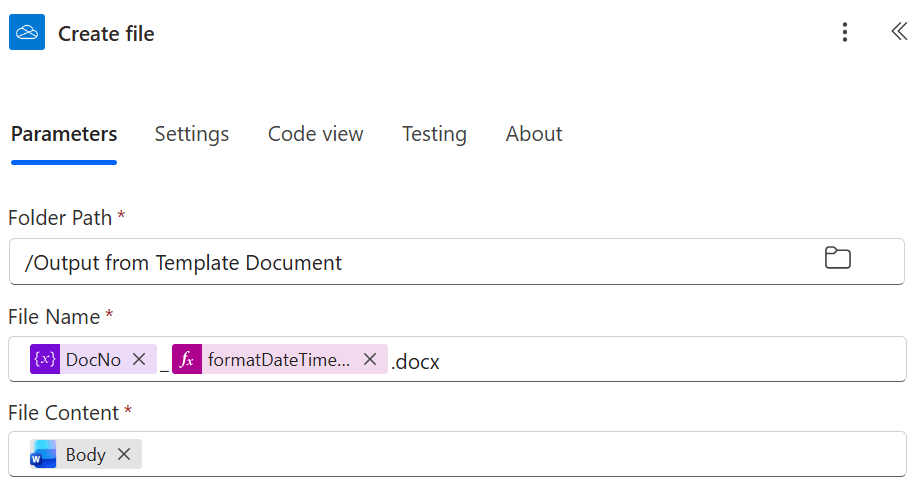
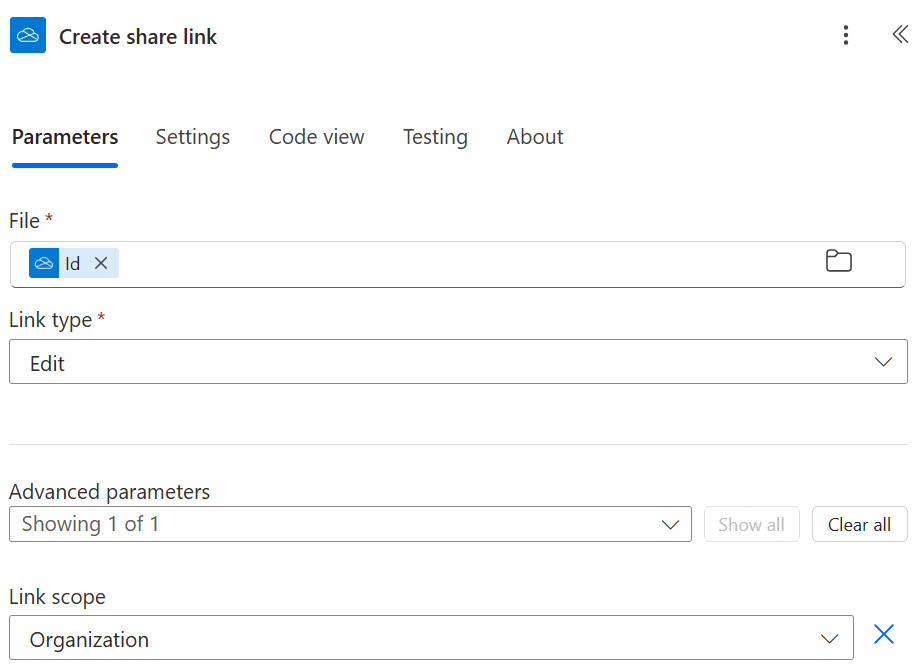
9. Create share link (OneDrive)
File: select dynamic content ‘Id’ from ‘create file’ action
Link Type: Edit
Link Scope: Organization
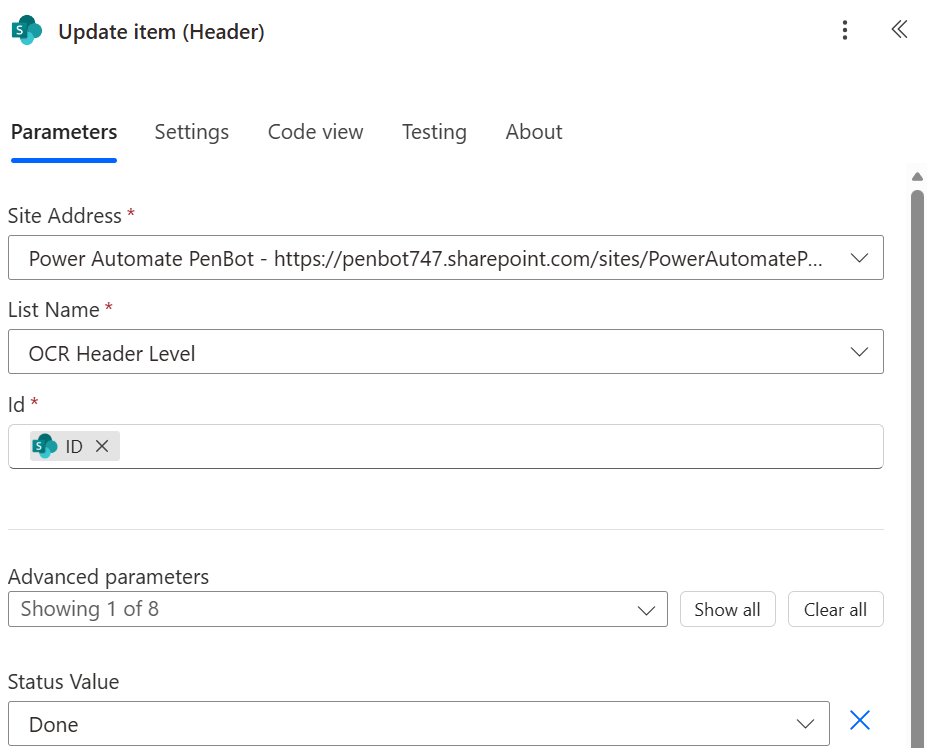
10. Update item (SharePoint)
Site Address: (select your SharePoint site)
List Name: (select your SharePoint list header level)
Id: select dynamic content ‘ID’ from trigger
Status Value: select Done
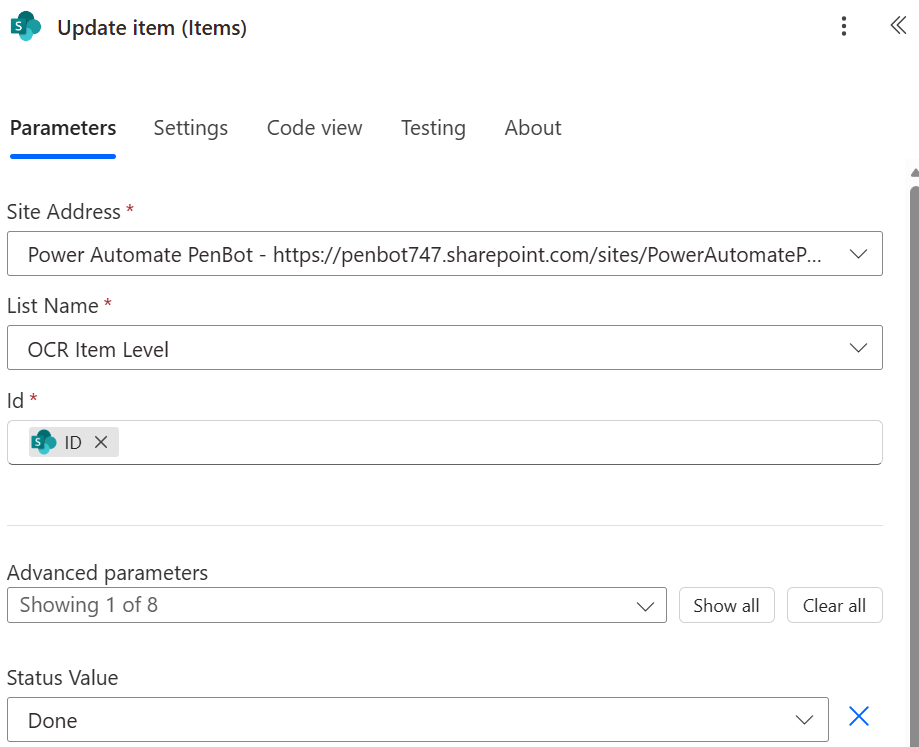
11. Update item (SharePoint)
Site Address: (select your SharePoint site)
List Name: (select your SharePoint list item level)
Id: select dynamic content ‘ID’ from ‘Get items’ action
Status Value: select Done
*Flow will create loop automatically to loop within SharePoint item
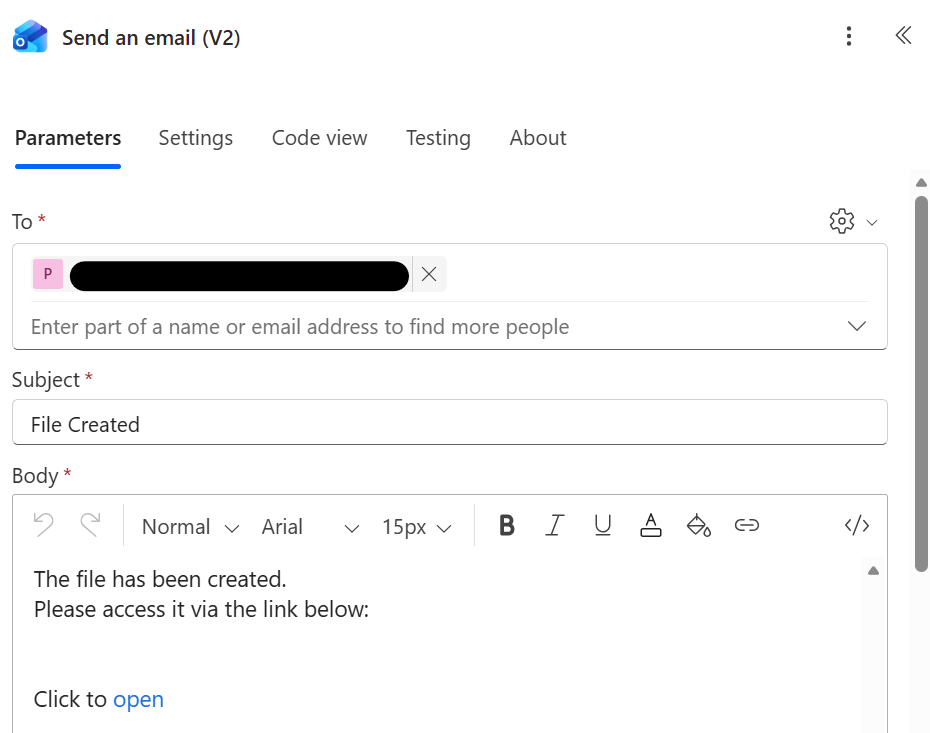
12. Send an email (Outlook)
To: your mail
Subject: File Created
Body: message as you need
Test Flow
Test flow and check result
 PenBot_RPA
Leave a comment