

Power Automate Desktop (PAD) allows you to automate tasks with ease, even if you’re new to programming.
In this guide, we’ll automate a workflow to retrieve Grab e-receipts from your Outlook inbox, extract relevant details (price, date/time, and shop name), and save the data in an Excel file. Finally, the report will be emailed back to you.
Pre-requisite
- Outlook desktop connect with Grab’s account
- Power Automate Desktop
- Microsoft Excel
Step-by-Step Workflow
You can copy the source code here and add you email account
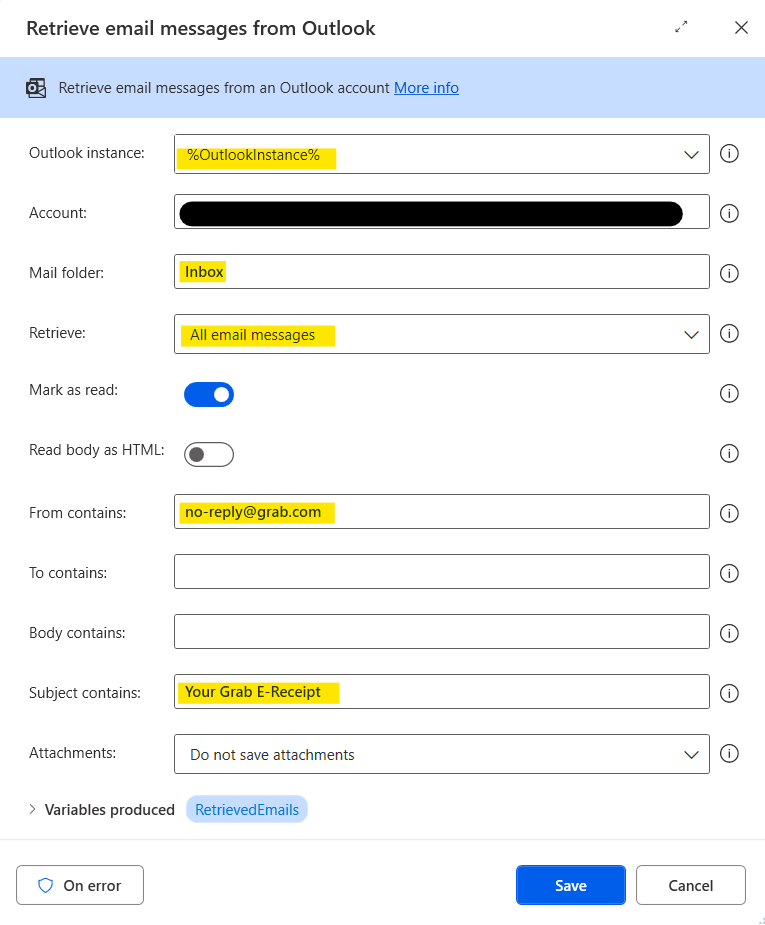
1. Retrieve Grab E-Receipts from Outlook
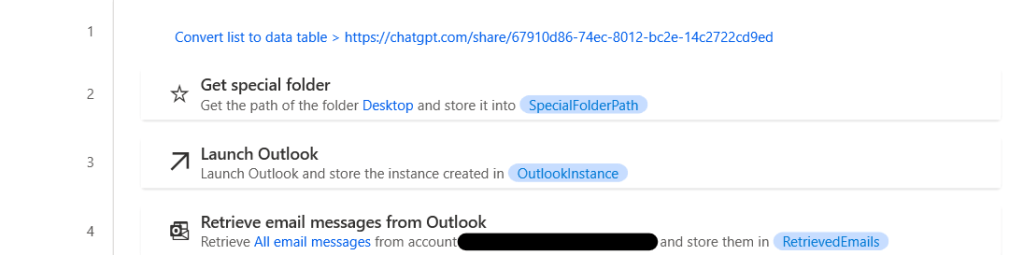
Set parameter as per below image and add your email in ‘Account’
2. Initialize Lists for Data Storage

3. Extract Relevant Information from Emails
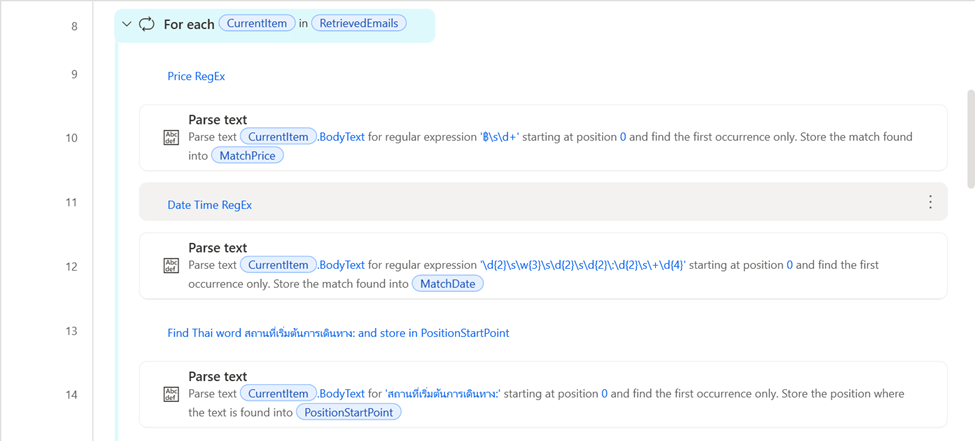
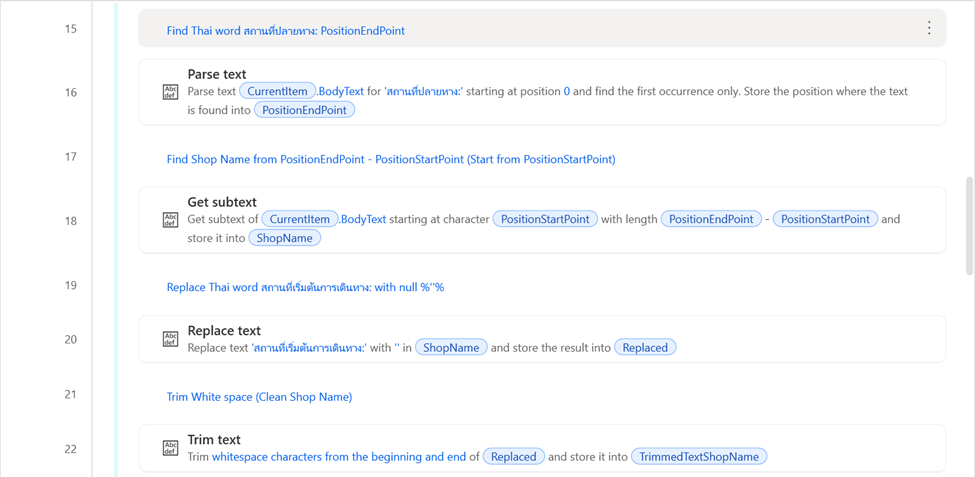
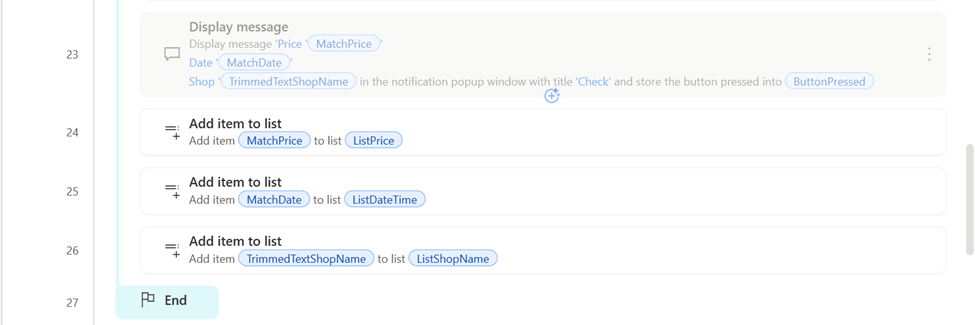
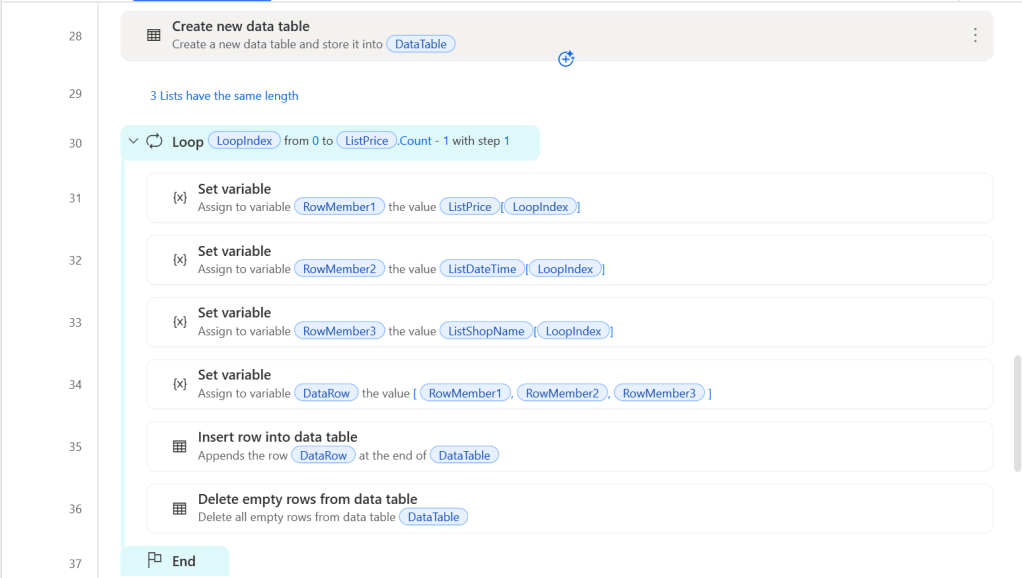
4. Organize Data into a Data Table
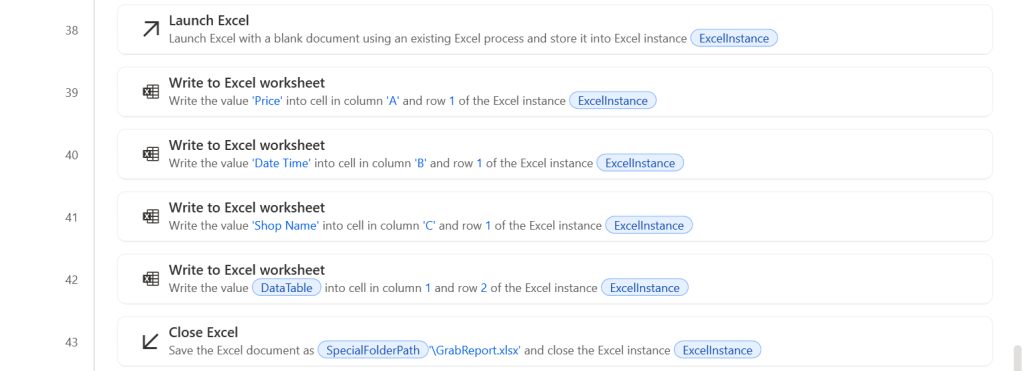
5. Export Data to Excel
6. Send the Report via Email

 PenBot_RPA
Leave a comment