

Control Structure: Selection
Flow Type: Instant Cloud Flow
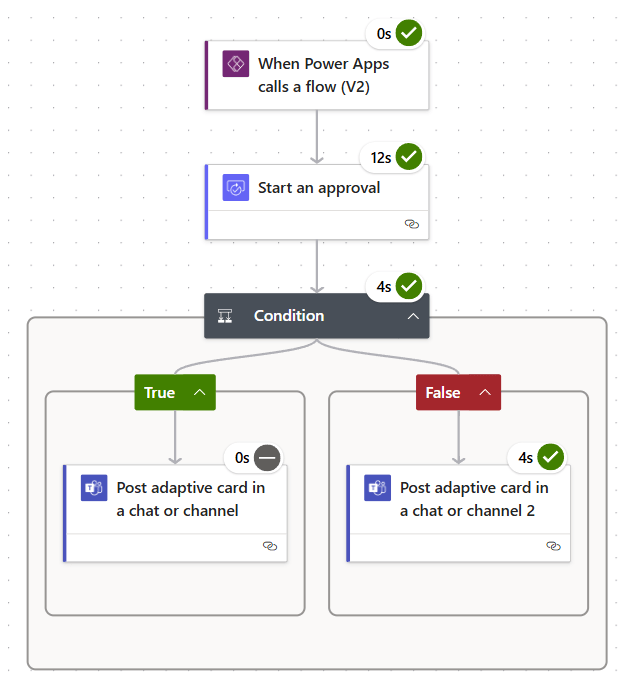
บทความนี้เขียนขึ้นเพื่อให้ผู้เริ่มใช้งาน Power Automate Cloud รู้จักกับ Template ที่สามารถหยิบไปใช้งานได้ทันที และได้เรียนรู้เกี่ยวกับรูปแบบการทำงานของคอมพิวเตอร์แบบ Selection (การทำงานแบบมีเงื่อนไข) และรู้จักกับประเภทของ Cloud flow แบบ Instant (ทำงานจากการคลิกตามที่เราต้องการ)
ไปที่ https://make.powerautomate.com/ คลิก Templates แล้วพิมพ์คำว่า ‘send approval and follow up via teams’ ในช่อง search จากนั้นเลือก template ใด template หนึ่งจาก 2 อันด้านล่าง
- คลิก template ที่หนึ่งสำหรับ approval process
- คลิก template ที่สองสำหรับตัวอย่าง adaptive card Ninja Cat

Template ที่หนึ่ง > คลิก ‘Continue’ > คลิก ‘Create’ จากนั้นก็ test ได้เลย
Template ที่สอง > คลิก ‘Continue’ > คลิก ‘Save’ จากนั้นก็ test ได้เลย
Test the flow
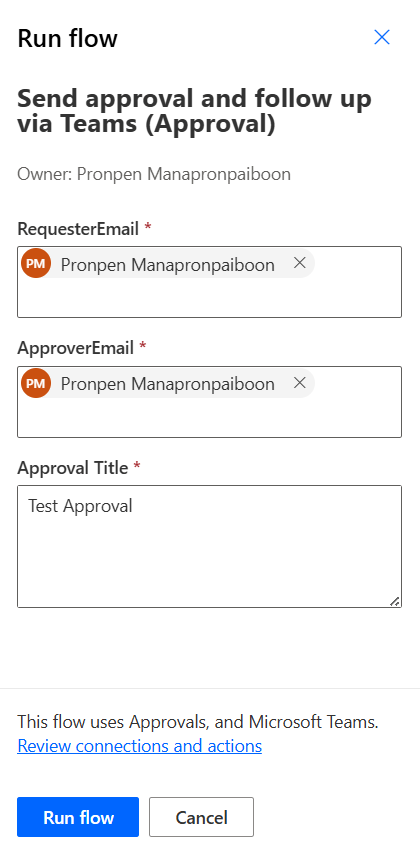
กดรัน flow, ใส่ ‘RequesterEmail’, ‘ApproverEmail’ และ ‘Approval Title’ จากนั้นคลิก ‘Run Flow’
ให้ approver กดปุ่ม approve

Power Automate จะส่ง adaptive card แจ้งผลการขออนุมัติให้ requester
รูปด้านล่างคือผลลัพธ์จาก template ที่หนึ่งและ template ที่สองตามลำดับ


สำหรับคนที่อยากลองเขียน Adaptive card ให้ลองไปดู Adaptive card samples หรือลองออกแบบเองที่ Adaptive card designer
กรณี Approve


กรณี Reject

 PenBot_RPA
Leave a comment