

In this article, I’ll show how to use the “Parse text” action with and without a regular expression to extract data from a Grab E-Receipt.
Download sample text file from here
Download source code from GitHub
Download the sample text file to your desktop, then copy its source code and paste it into Power Automate Desktop’s workspace.
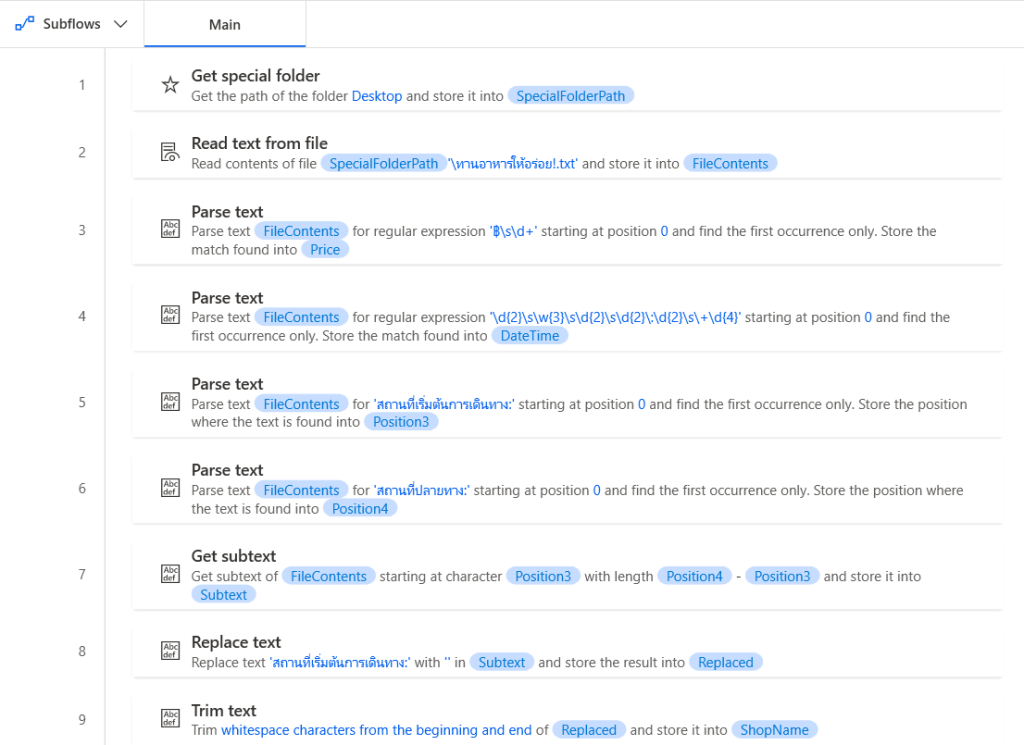
Get special folder
Retrieve the path to the Desktop folder and store it in “SpecialFolderPath”
Read text from file
Read the sample text file at desktop folder and store it into “FileContents”
Parse text
- Use a Regular Expression extract a specific pattern from “FileContents” and stores the first match in “price”
- Use another Regular Expression extract a specific pattern from “FileContents” and stores the first match in “date”
- Search for specific word “สถานที่เริ่มต้นการเดินทาง:” in “FileContents” and stores the position in “position1”
- Search for specific word “สถานที่ปลายทาง:” in “FileContents” and stores the position in “position2”
Get subtext
Extracts a substring from “FileContents” using “position1” as the start position and use “position2” – “position1” as the length, then stores it in “subtext”
Replace text
Replace the word “สถานที่เริ่มต้นการเดินทาง:” in “subtext” with an empty string and stores the results in “Replaced”
Trim text
Remove any leading or trailing whitespace from “Replaced” and store the final clean-up text in “TrimmedText”
Test the Flow
Test the flow and see result.

 PenBot_RPA
Leave a comment