

Generate App password
ไปที่ Sign in with app passwords
คลิกที่ link “Create and manage your app passwords”
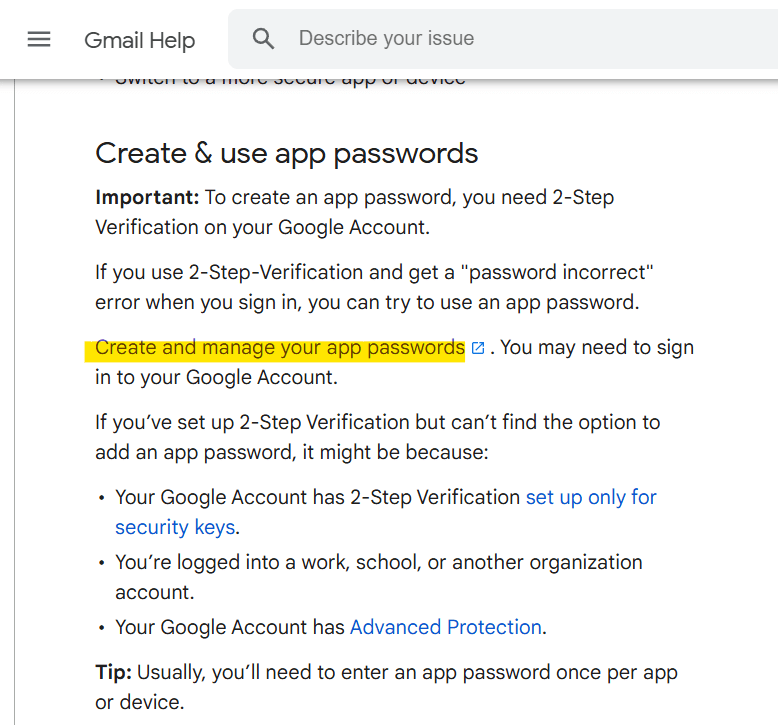
Sign in Gmail account ของคุณ
ตั้งชื่อ app name แล้วกดปุ่ม create ตามรูปด้านล่าง

Copy รหัสที่ได้จาก app password

Create Power Automate Desktop Flow
ไปที่ Power Automate Desktop ลาก action “Send mail” ไปที่ workspace

ตั้งค่า parameter ตามรูปด้านล่าง
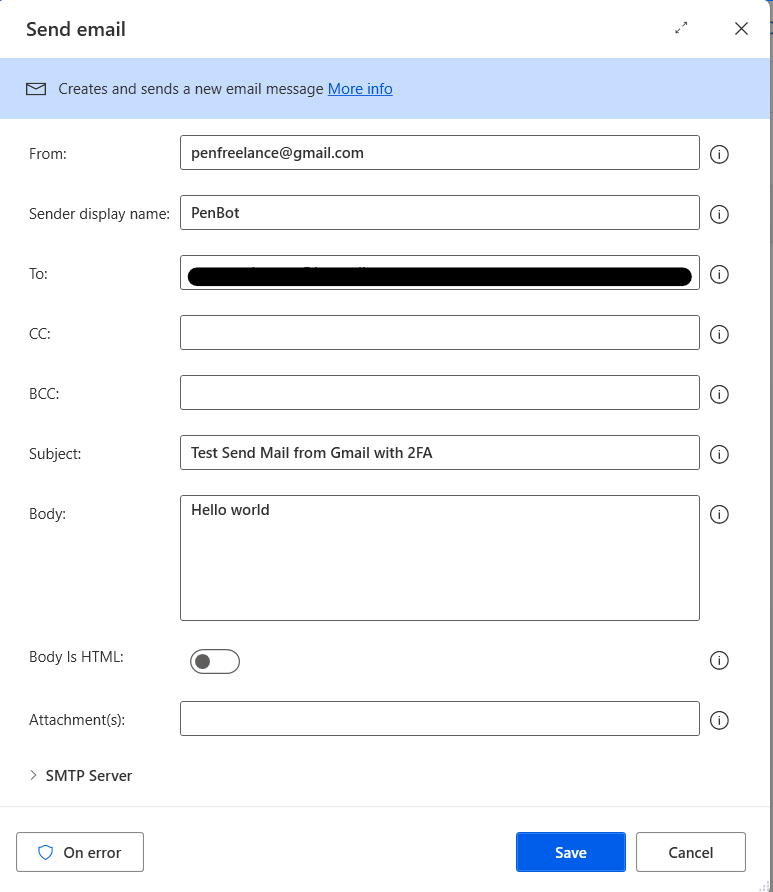

SMTP Server: smtp.gmail.com FOR TLS
Security: TLS
Port: 587For SSL
Security: SSL
Port: 465SMTP Username: your_email@gmail.com
SMTP Password: your_app-password (that generated from previous section)Test the flow

หวังว่าบทความนี้จะเป็นประโยชน์นะคะ แล้วพบกัใหม่ Happy Automating!! 😁
 PenBot_RPA
Leave a comment