

Generate App password
Go to Sign in with app passwords
Click the link “Create and manage your app passwords”.
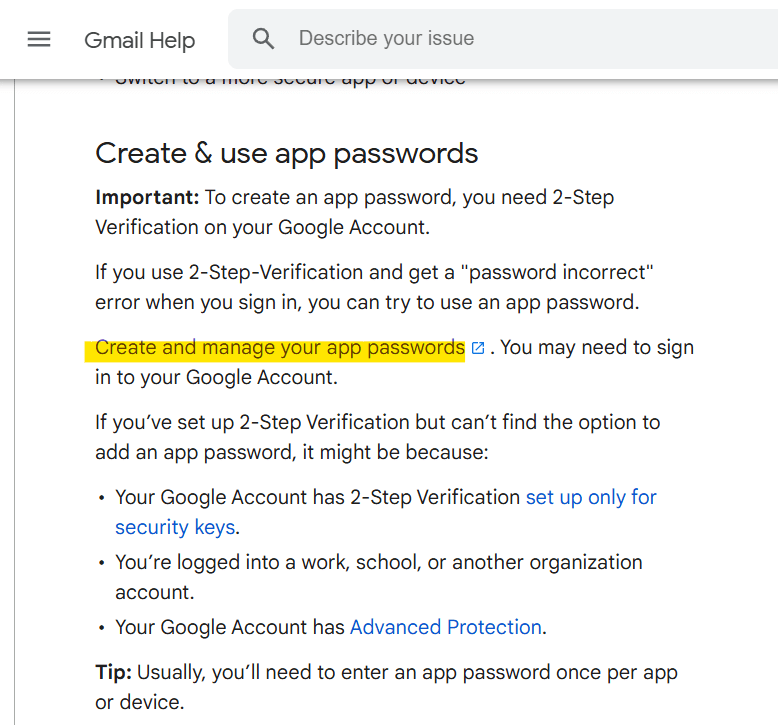
Sign in your Gmail account.
Name the app name and press create button as per below image.

Copy the app password.

Create Power Automate Desktop Flow
Go to Power Automate Desktop, drag action “Send mail” to the workspace.

Set parameter as per below image
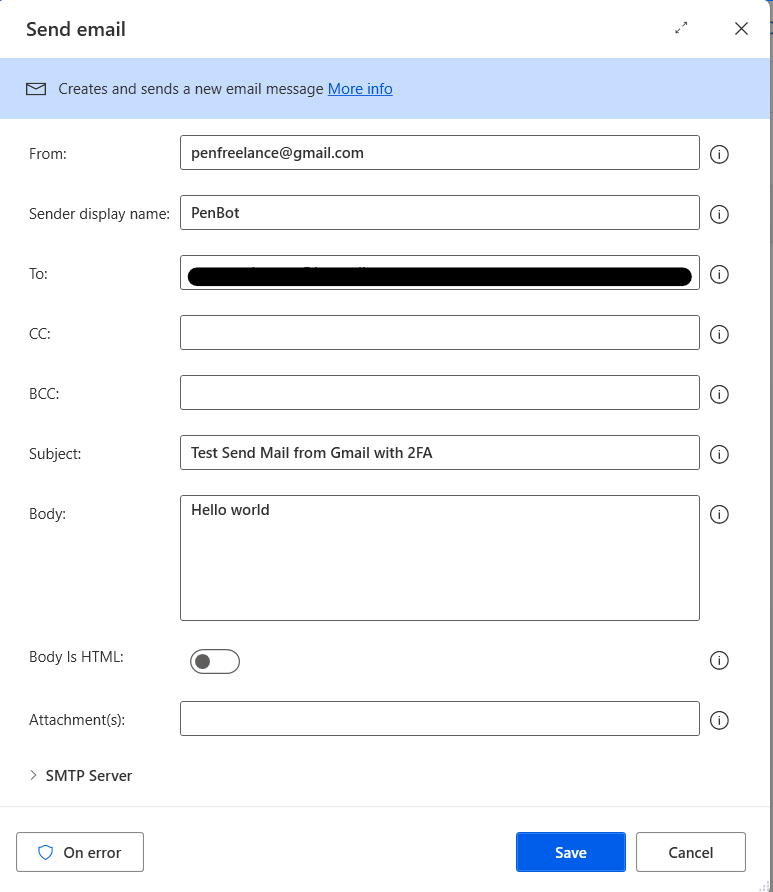

SMTP Server: smtp.gmail.com FOR TLS
Security: TLS
Port: 587For SSL
Security: SSL
Port: 465SMTP Username: your_email@gmail.com
SMTP Password: your_app-password (that generated from previous section)Test the flow

Until we meet again, Happy Automating!! 😁
 PenBot_RPA
Leave a comment