

The below flowchart outlines a simple program that takes two numbers as input, calculates their sum, and then displays the result.

If we convert the above flowchart to Power Automate Desktop (PAD), it would look like this:
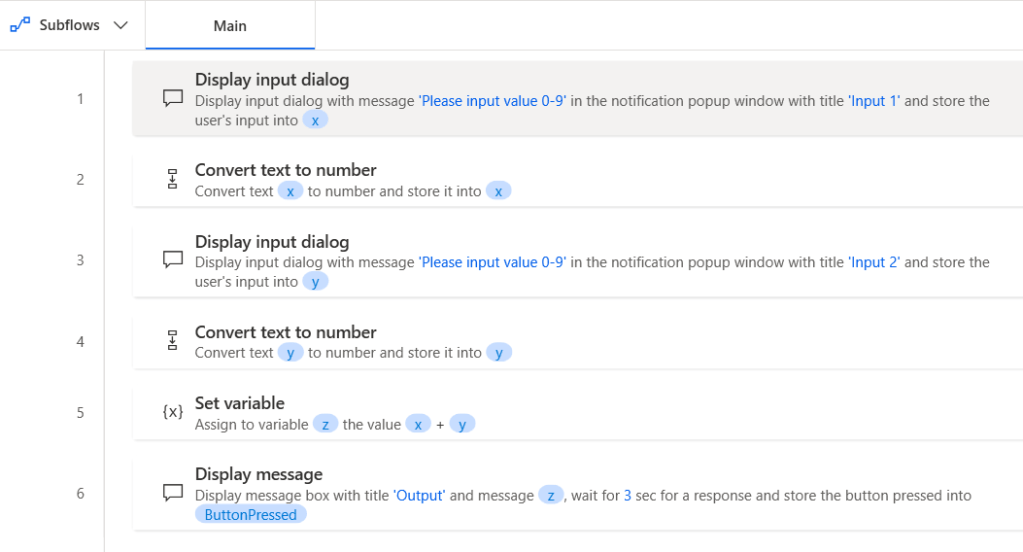
It’s generally acceptable to write PAD flows like this when creating simple workflows, especially if the flow is designed for personal use or as a quick prototype.
However, there are a few best practices to consider that can improve the clarity and maintainability of your flow.
1. Clarity on Data Types
- While PAD automatically handles some data type conversions (e.g., text to number), explicitly managing data types (e.g., naming variables like xText and xNumber) can make the flow more readable and help debug issues.
- This is especially helpful in more complex workflows where the same variable might be reused.
2. Avoid Reusing Variables
- Reusing variables (
xandyhere) can lead to confusion and potential bugs in larger or collaborative projects. - Instead, use descriptive and unique variable names, such as numInput1 and numInput2 to make the flow self-explanatory.
3. Scalability and Debugging
- Explicitly separating variables for different steps ensures that if something goes wrong, it’s easier to trace the issue.
- In a larger flow, reusing variables like this might overwrite important data unexpectedly.
4. Consistency
Following consistent naming conventions improves readability. For example, use prefixes (num, txt, etc.) or suffixes (_Text, _Number, etc.) to indicate data types.
Modify the flow
- Rename x and y to txtInput1 and txtInput2 before converting to numbers.
- Use separate variables for converted values, such as numInput1 and numInput2.
- Keep z for the final result but give it a more descriptive name, such as sumResult.

Until we meet again, Happy Automating!! 😁
 PenBot_RPA
Leave a comment