

ในบทความนี้จะสอนเกี่ยวกับการใช้ Power Automate template ได้แก่
- Notify a team of new SharePoint files
- Notify a team of new SharePoint list items
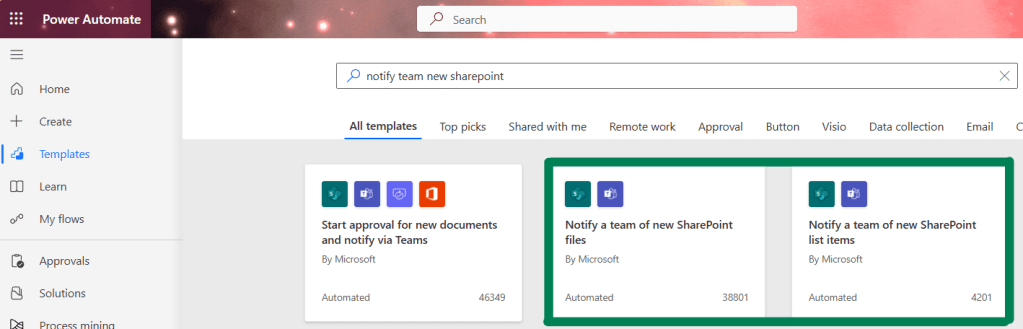
Notify a team of new SharePoint files
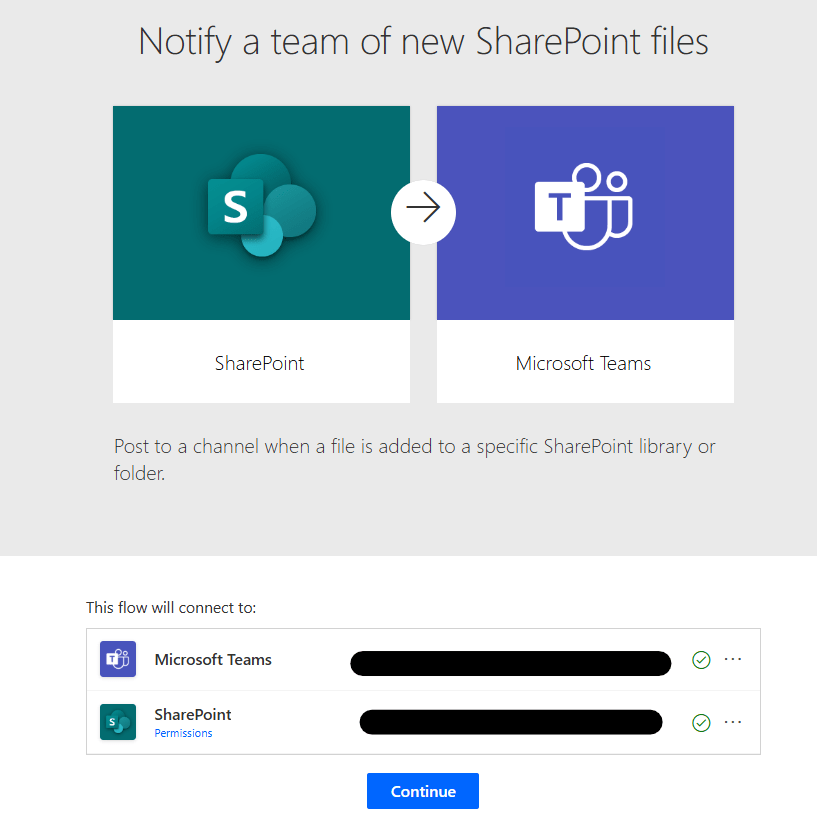
Template นี้จะ post ข้อความไปที่ chat หรือ channel ใน Microsoft Teams เมื่อมีไฟล์เพิ่มเข้าไปใน SharePoint library หรือ folder ที่เราระบุ
กด Connect Microsoft Teams และ SharePoint จากนั้นกด ‘Continue’
เลือก SharePoint site, SharePoint library, SharePoint folder, Microsoft teams team และ channel ที่ต้องการจากนั้นกด ‘Continue’

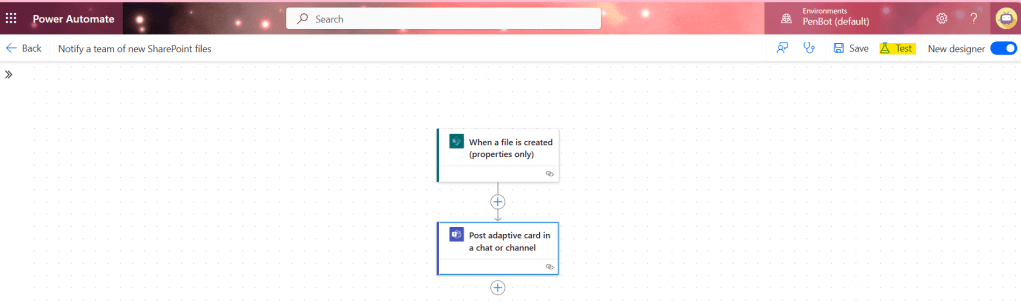
กด Test
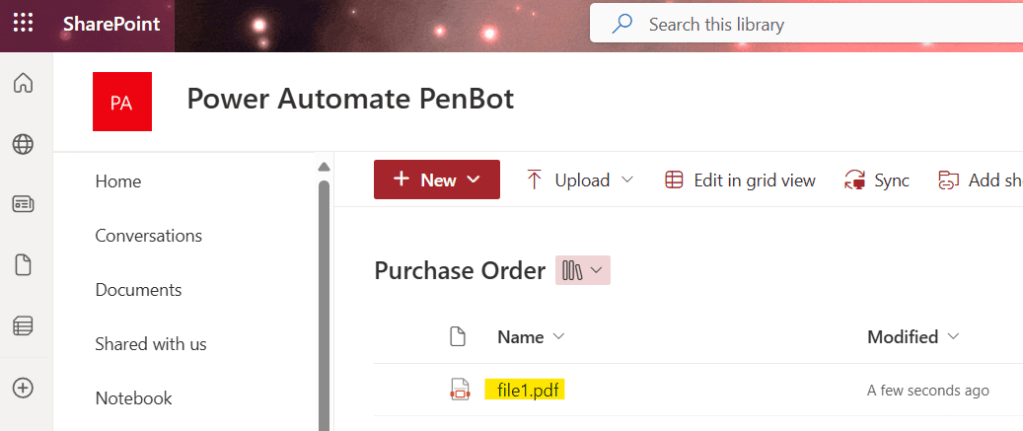
ลองเพิ่มไฟล์ใน SharePoint library
เมื่อโฟลว์ทำงานสำเร็จ ลองไปดูที่ MS teams channel
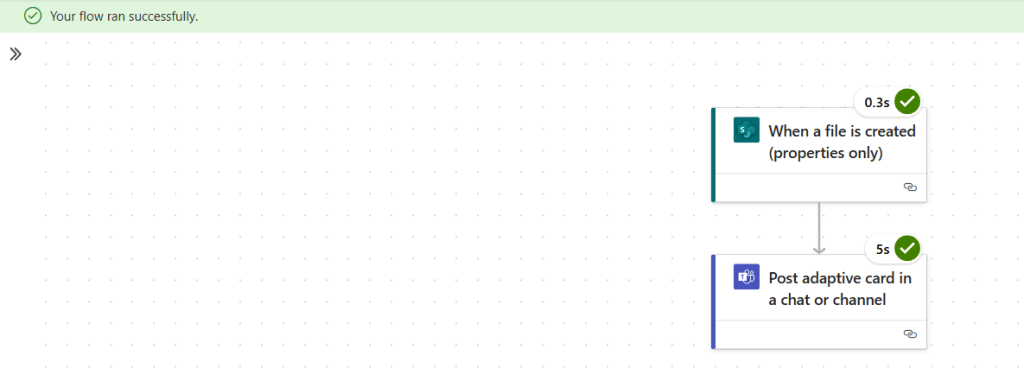

ใน Template flow นี้เราจะได้เห็นวิธีการใช้ Adaptive card ด้วย

โดยในโฟลว์นี้มีการใช้ dynamic values 3 ค่า ซึ่งค่าเหล่านี้ไม่มีอยู่ใน dynamic content picker เราต้องเขียน expressions ขึ้นมาเอง
ถ้าเราเลือก ‘File name with extension’ จาก picker เราจะได้ expression แบบด้านล่าง:
triggerBody()?['{FilenameWithExtension}']แต่ในโฟลว์นี้ เราต้องเขียน expression แบบด้านล่าง:
triggerOutputs()?['body/{FilenameWithExtension}']ดังนั้น dynamic values ทั้ง 3 ค่าในโฟลว์นี้ คือ:
triggerOutputs()?['body/{FilenameWithExtension}']
triggerOutputs()?['body/{Path}']
triggerOutputs()?['body/{Link}']
ถ้าหากต้องการให้ Power Automate แจ้งเตือนแค่เรา สามารถเปลี่ยน parameter ‘Post in’ เป็น ‘Chat with Flow bot’ แล้วเพิ่มตัวเองเป็น recipient ได้เลย จากนั้นก็ลบ Team ID และ Channel ID
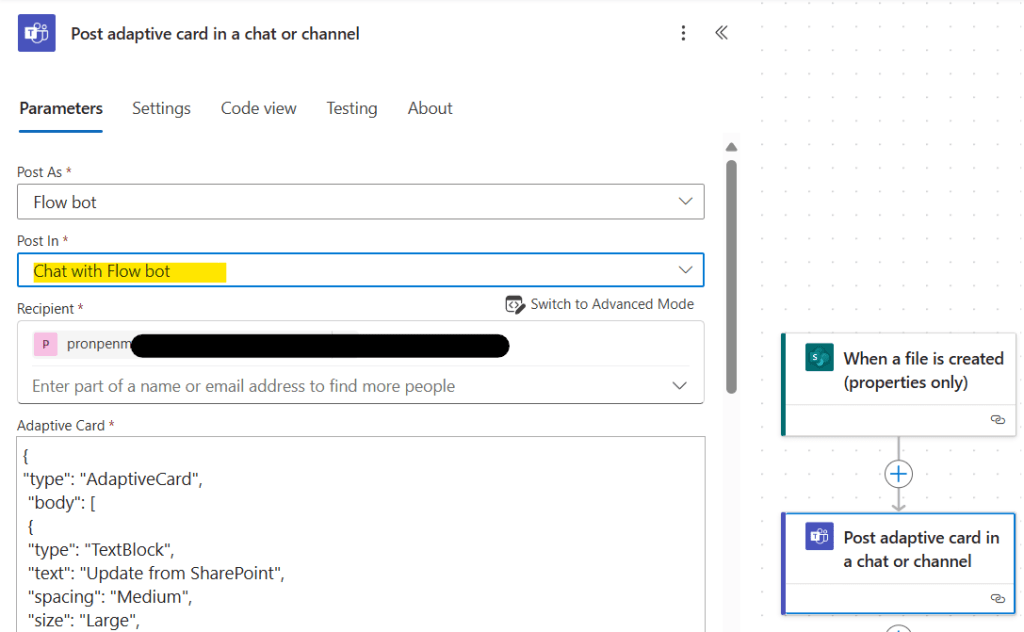

ถ้าต้องการให้ Power Automate แจ้งเตือนใน group chat สามารถเปลี่ยน parameter ‘Post in’ เป็น ‘Group chat’ เพิ่ม group chat แล้วลบ parameter ที่ไม่จำเป็นออกไป

เราสามารถออกแบบ adaptive card โดยใช้ adaptive card designer หรือ ChatGPT เขียนโค้ดให้ได้

ในที่นี้ ลองใช้ Designer ดูก่อน โดย copy code จาก Power Automate template แล้ววางใน Adaptive Card Designer (เลือก host app เป็น Microsoft Teams) แล้วลองแก้ไขข้อความตามที่ต้องการ
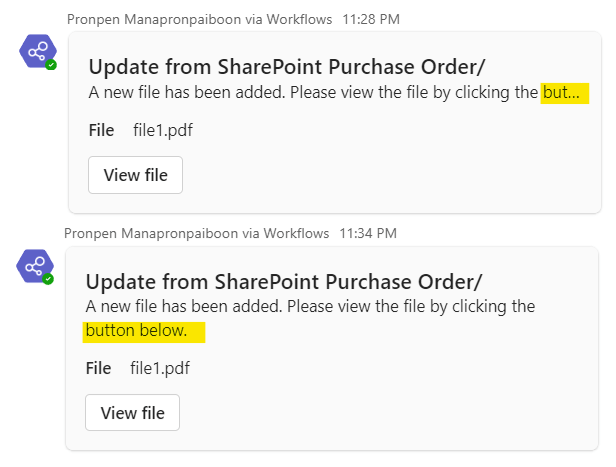
ปรากฏว่าข้อความไม่ wrap ให้ ก็เลยเอาไปถาม ChatGPT ให้ช่วยแก้ code ให้

รูปภาพด้านล่างแสดงผลลัพธ์ ก่อนและหลังของ Adaptive Card ที่ไม่ wrap text กับ wrap text
Notify a team of new SharePoint list items
Template นี้จะ post ข้อความไปที่ chat หรือ channel ใน Microsoft Teams เมื่อมีไฟล์ item เพิ่มเข้าไปใน SharePoint list ที่เราระบุ
กด Connect Microsoft Teams และ SharePoint จากนั้นกด ‘Continue’
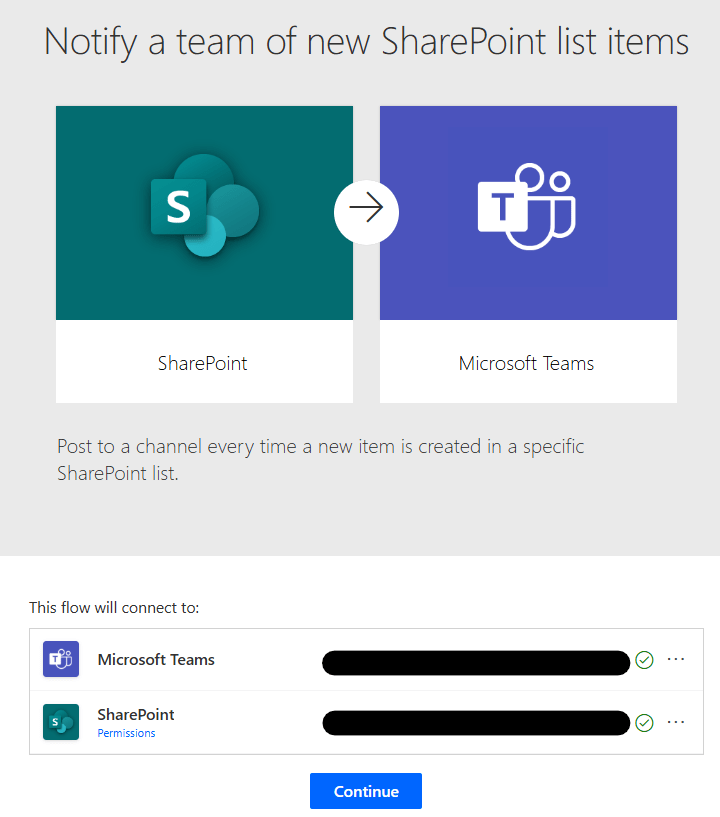
Connect your account and press continue
เลือก SharePoint site, SharePoint list, Microsoft teams team และ channel ที่ต้องการจากนั้นกด ‘Continue’

กด Test
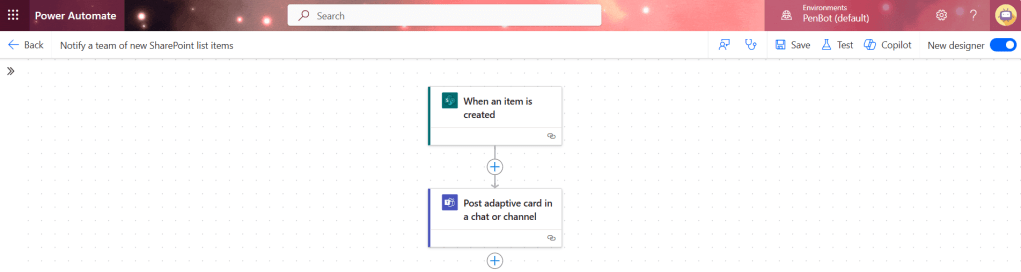
ลองเพิ่ม item ใน SharePoint list

After the flow run success, check your team channel.

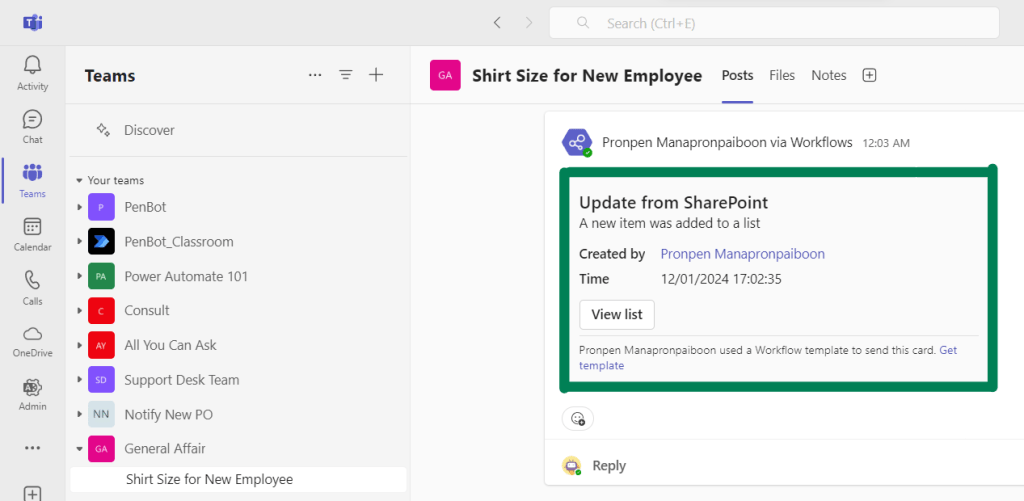
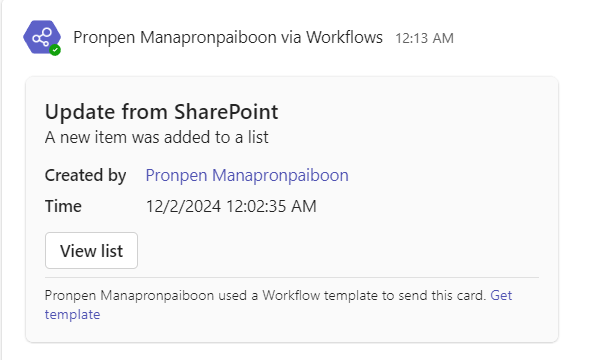
สามารถเปลี่ยน time zone จาก UTC เป็น time zone ที่ต้องการได้ ในที่นี้กรุงเทพใช้ UTC+07:00.

จากนั้นแทนที่ dynamic content ของเวลาที่เปลี่ยน time zone ใน adaptive card

ทดสอบโฟลว์และดูผลลัพธ์
หวังว่าบทความนี้จะช่วยให้ทุกคนเข้าใจการใช้ Power Automate templates และสามารถนำความรู้ไปปรับใช้ เพื่อสร้าง adaptive cards ด้วยการใช้ Designer และ ChatGPT ได้
Until we meet again, Happy Automating!! 😁
 PenBot_RPA
Leave a comment