

This article will discuss using Power Automate templates, including:
- Notify a team of new SharePoint files
- Notify a team of new SharePoint list items
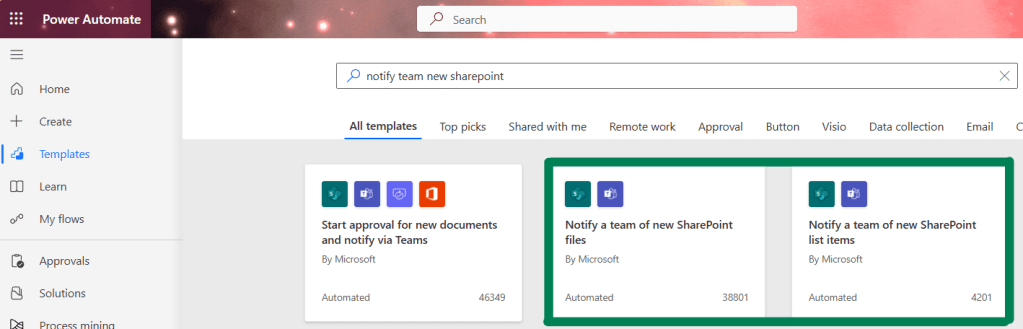
Notify a team of new SharePoint files
This template will post a message to a chat or channel in Microsoft Teams when a file is added to a specific SharePoint library or folder.
Connect your Microsoft Teams and SharePoint accounts, then press ‘Continue’.
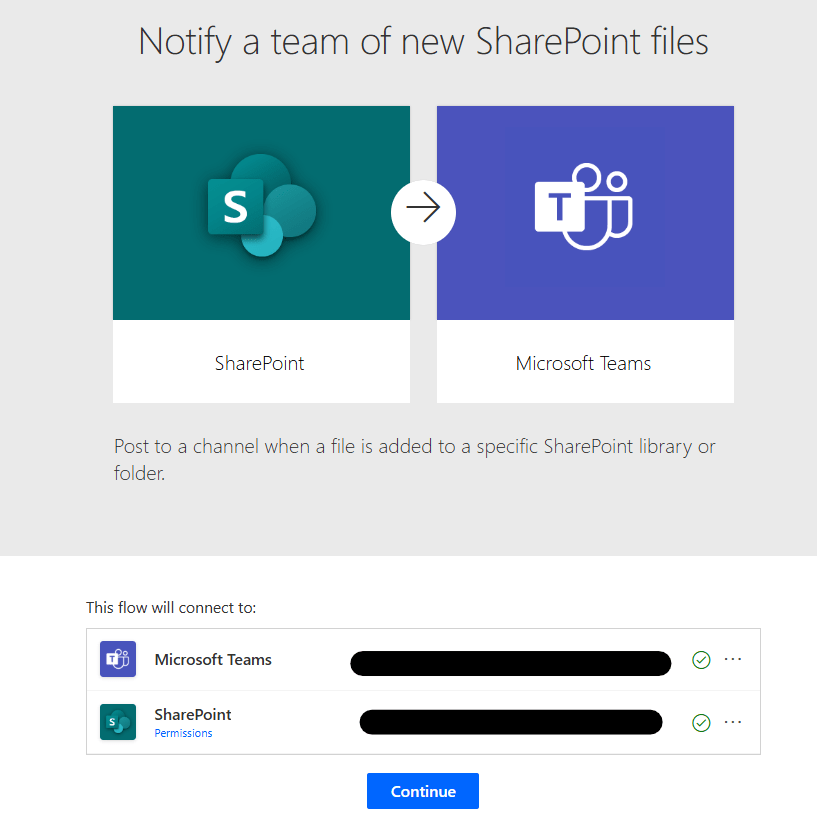
Select SharePoint site, SharePoint library, SharePoint folder, Microsoft teams team and channel then press ‘Continue’.

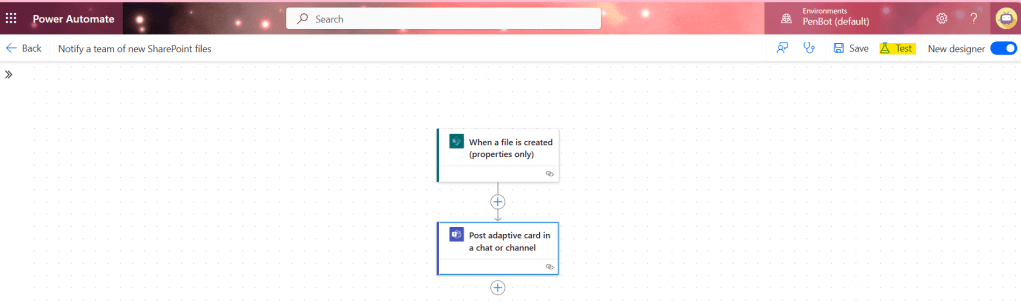
Test your flow.
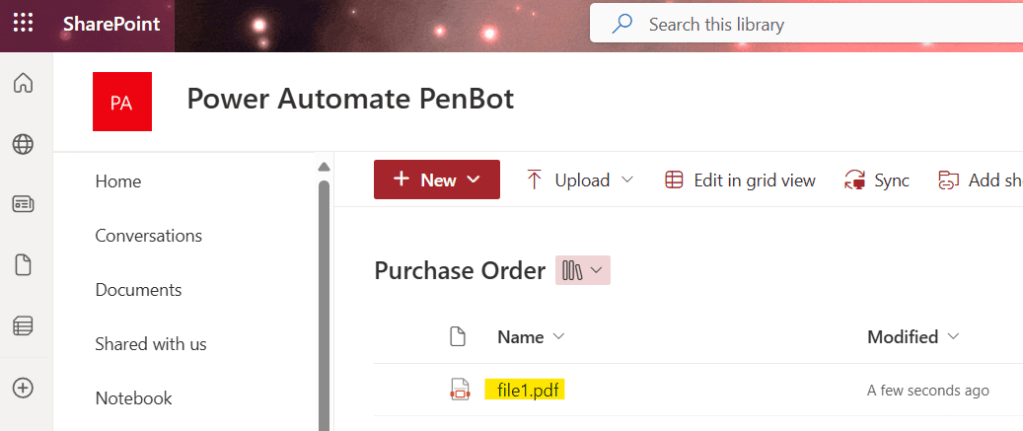
Add your file in SharePoint library.
After the flow run success, check your team channel.
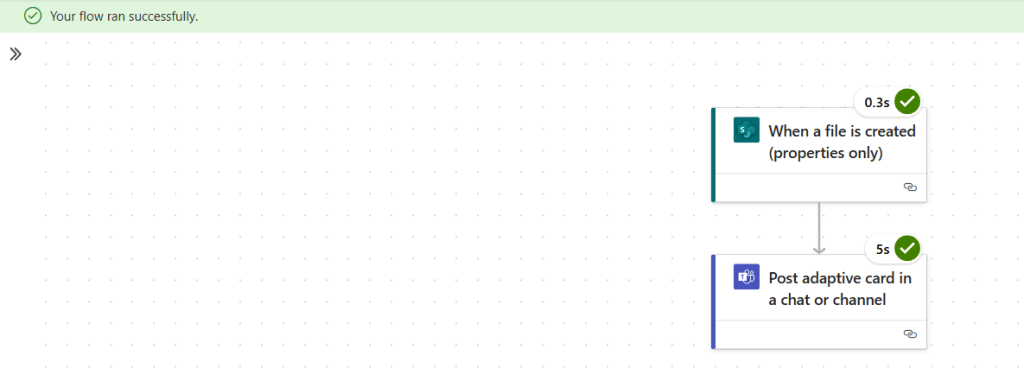

In this flow, you will learn about adaptive card

The three dynamic values in this flow are not available in the dynamic content picker; you need to write expressions to use them.
If you select ‘File name with extension’ from the picker, you will get an expression like:
triggerBody()?['{FilenameWithExtension}']However, in this flow, you need to write the expression yourself, like this:
triggerOutputs()?['body/{FilenameWithExtension}']Therefore, the three dynamic values in this flow are:
triggerOutputs()?['body/{FilenameWithExtension}']
triggerOutputs()?['body/{Path}']
triggerOutputs()?['body/{Link}']
If you want Power Automate to notify only you, you can change the parameter ‘Post in’ to ‘Chat with Flow bot,’ add yourself as the recipient, and remove the Team ID and Channel ID.
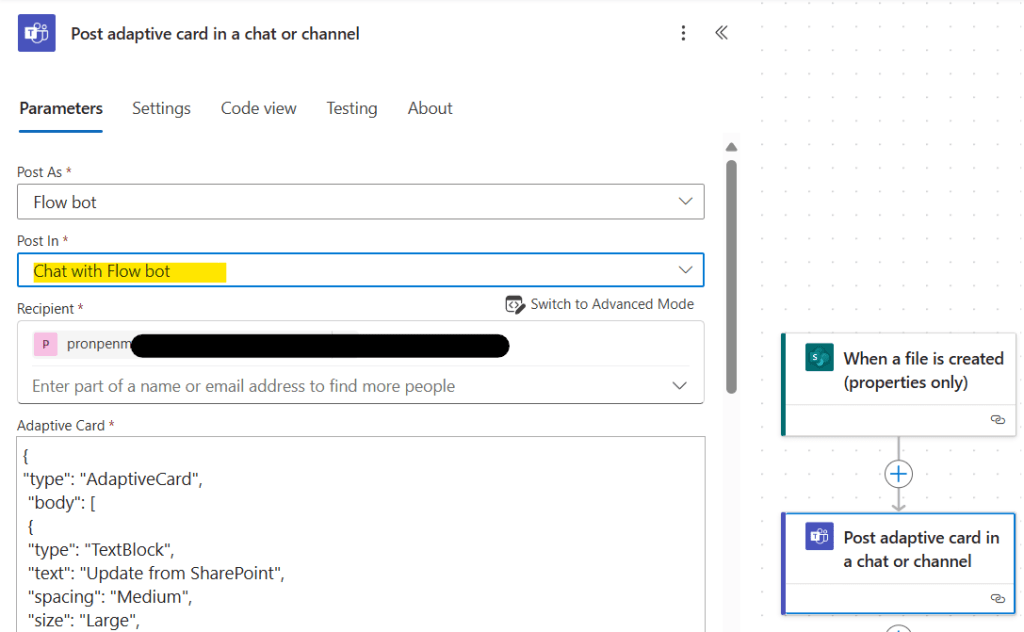

If you want Power Automate to notify in a group chat, you can change the parameter ‘Post in’ to ‘Group chat,’ add the group chat, and remove unnecessary parameters.

You can design adaptive card by using adaptive card designer or use ChatGPT to write the code for you.

In my case, I copied the code from a Power Automate template and pasted it into the Adaptive Card Designer (with the host app set to Microsoft Teams), then edited some sentences.
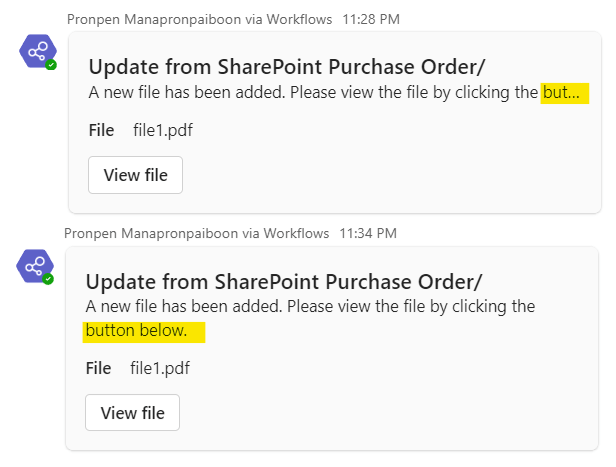
However, the text does not wrap, so I asked ChatGPT to help fix it.

The image below shows the before and after versions of the revised Adaptive Card result.
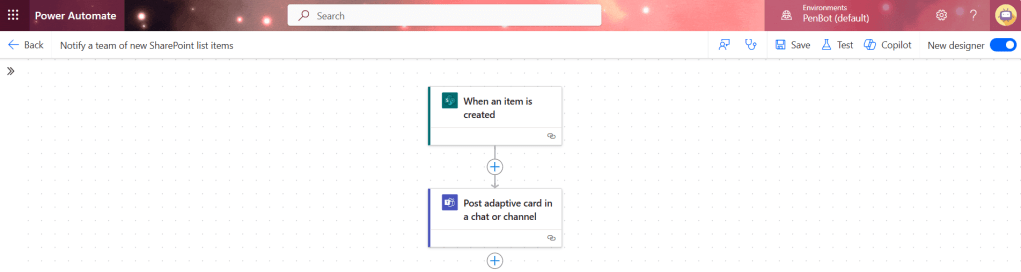
Notify a team of new SharePoint list items
This template will post a message to a chat or channel in Microsoft Teams every time a new item is created in a specific SharePoint list.
Connect your Microsoft Teams and SharePoint accounts, then press ‘Continue’.
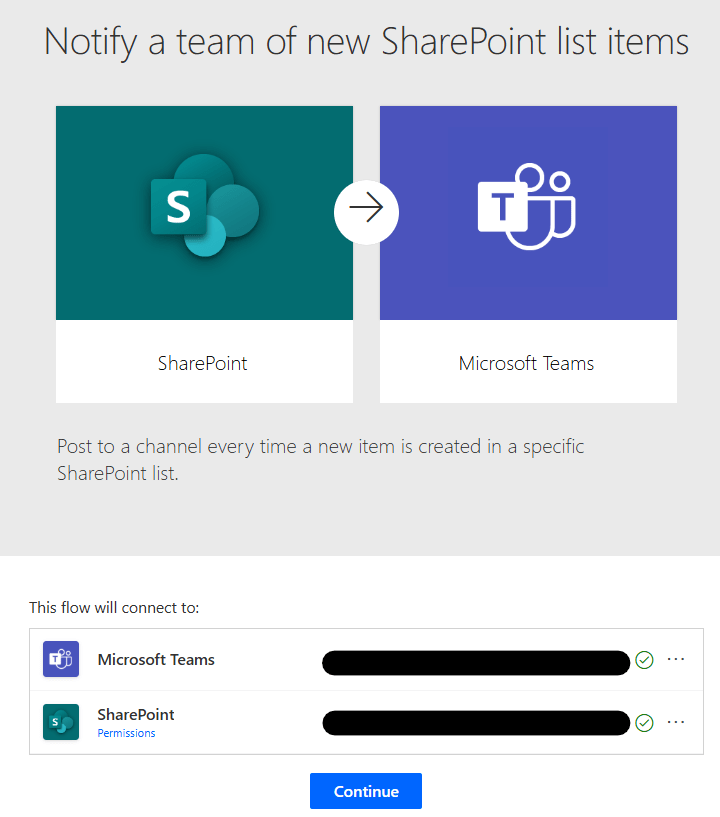
Connect your account and press continue
Select SharePoint site, SharePoint list, Microsoft teams team and channel then press ‘Continue’.

Test your flow.
Add item in SharePoint list.

After the flow run success, check your team channel.

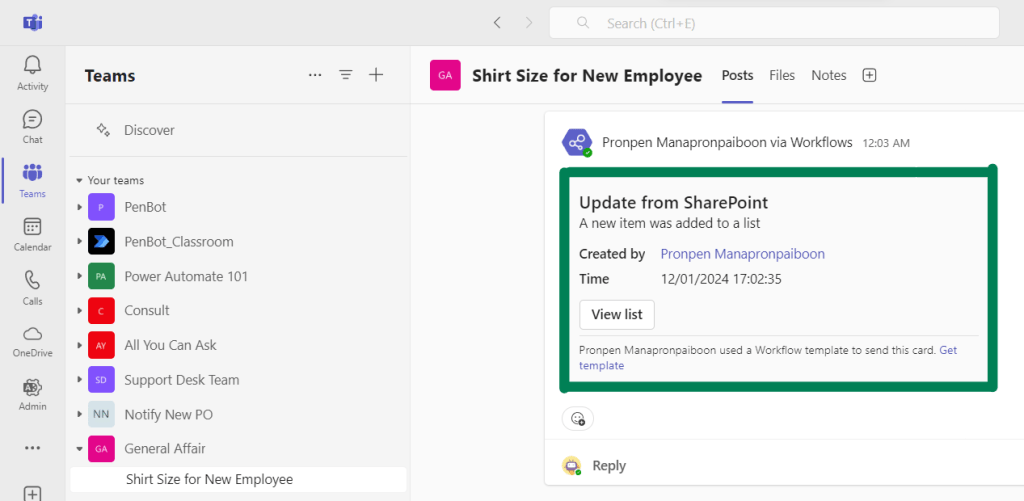
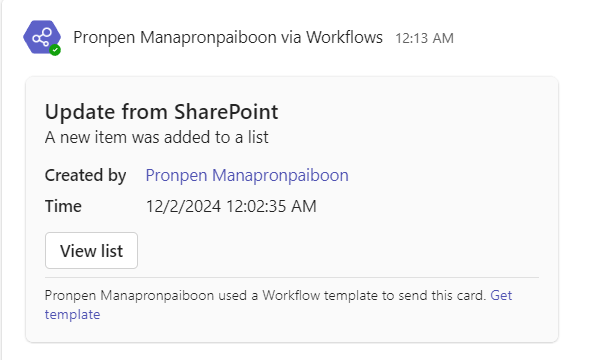
You can convert the time zone from UTC to your time zone, for me it is UTC+07:00.

Then replace dynamic content in adaptive card.

Test and check result.
I hope you now have a better understanding of how to use Power Automate templates and can apply this knowledge to create adaptive cards using ChatGPT.
Until we meet again, Happy Automating!! 😁
 PenBot_RPA
Leave a comment