

For each loop เป็นการวนค่าใน list หรือ data table และเก็บค่าไว้ในตัวแปร current item
List คืออะไร?
List คือ การเก็บค่าหลายๆ ค่าเข้าไปเป็นตัวแปรเดียว โดยที่มีการเรียงลำดับและแสดงตำแหน่งของข้อมูลแต่ละตัวด้วย Index
List สามารถเป็น list ของข้อความ, lists ของตัวเลข หรืออื่นๆ ได้
Data type ของ list เทียบเท่ากับ single-dimension array ในการเขียนโปรแกรม
3 วิธีในการสร้าง list
เราสามารถสร้าง list ด้วยการใช้คำสั่งต่างๆ ดังนี้:
- คำสั่ง Create new list & คำสั่ง Add item to list
- คำสั่ง Set variable
- สร้าง list ด้วยคำสั่งที่ให้ output เป็น list เช่น คำสั่ง Read text from file, คำสั่ง Get files in folder
1. คำสั่ง Create new list & คำสั่ง Add item to list
เราสามารถสร้าง list ด้วยคำสั่ง Create new list แล้วใช้คำสั่ง Add item to list เพื่อสร้าง list ขึ้นมาได้

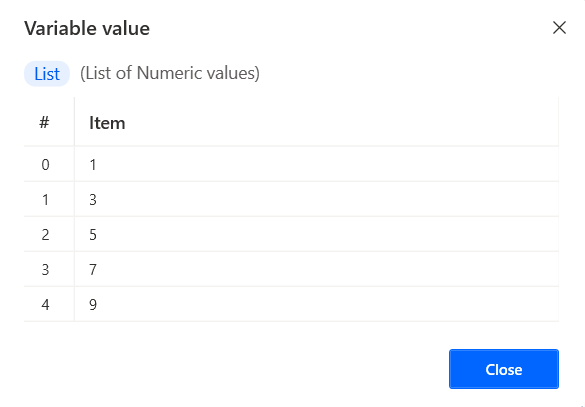
2. คำสั่ง Set variable
เราสามารถสร้าง list จากคำสั่ง Set variable ได้ โดยแต่ละสมาชิกของ list จะต้องคั่นด้วยเครื่องหมาย comma และสมาชิกทั้งหมดของ list ต้องอยู่ใน square brackets และใช้สัญลักษณ์ % เปิดและปิดเพื่อให้รู้ว่าเป็นตัวแปร
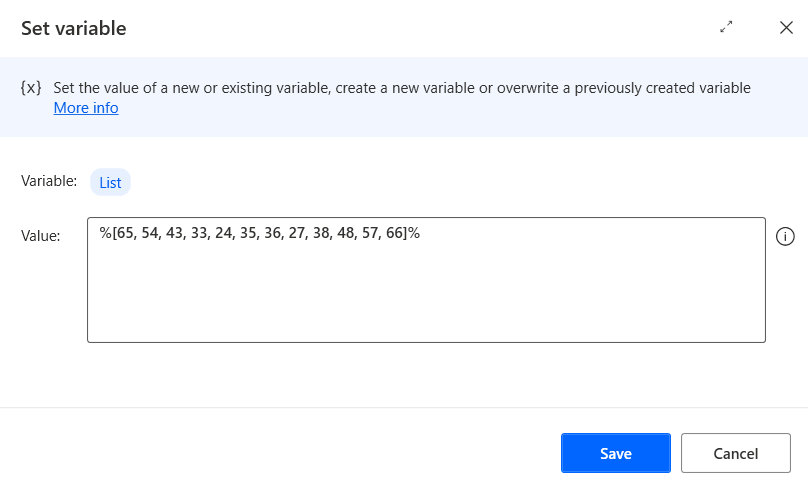

3. สร้าง list ด้วยคำสั่งที่ให้ output เป็น list เช่น คำสั่ง Read text from file, คำสั่ง Get files in folder
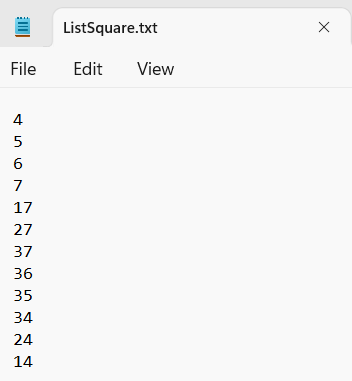
ในบทความนี้เราจะใช้คำสั่ง Read text from file แล้วเลือก parameter ที่ชื่อ set store content as ว่า “List (each is a list item)” ตามรูปด้านล่าง

For Each Loop
เราจะใช้เว็บไซต์ https://faculty.washington.edu/chudler/java/boxes.html เพื่อแสดงผลลัพธ์ของการใช้ for each loop
เว็บไซต์นี้เป็นเกมที่ให้เราคลิกกล่อง check box ภายในเวลา 20 วินาที แต่ละกล่องจะมีเลข ordinal ที่แตกต่างกันตามตัวหนังสือสีแดงในภาพด้านล่าง ตั้งแต่เลข 1 ถึง 100

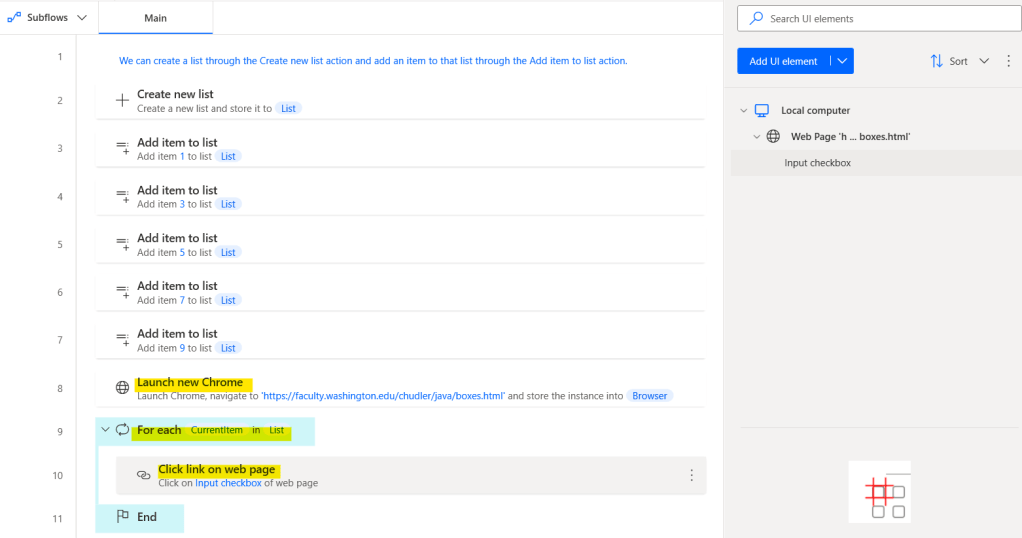
1. การใช้ For each กับ List ที่สร้างจากคำสั่ง Create new list & คำสั่ง Add item to list
เพิ่มคำสั่ง Launch new chrome, คำสั่ง For Each และคำสั่ง Click link on web page ตามรูปด้านล่าง
โดยที่คำสั่ง Click link on web page ให้เลือกกล่อง check box อันไหนก็ได้ 1 กล่อง
ไปที่ UI elements tab แล้ว double click ที่ element ของ check box จะมีหน้าต่างใหม่ปรากฏขึ้นมาตามภาพด้านล่าง
จากนั้นให้เปิด toggle ของ “Text editor” แล้วเลือกตัวแปร CurrentItem

เพื่อนๆ สามารถ copy source code ที่นี่
รันโฟลว์แล้วดูผลลัพธ์บนเว็บไซต์จะได้ดังรูปด้านล่าง
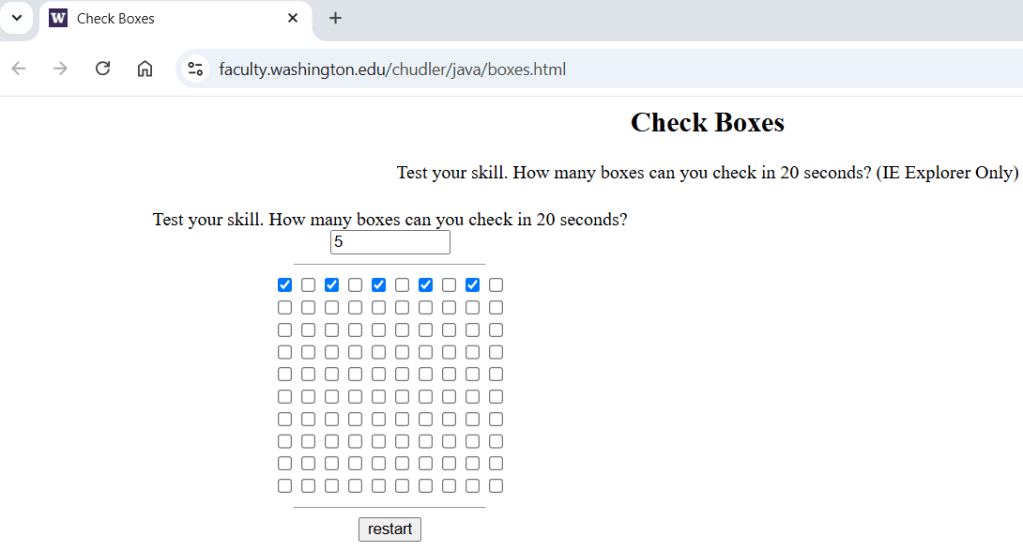
2. การใช้ For Each กับ List ที่สร้างจากคำสั่ง Set variable
ทำเหมือนกับโฟลว์ที่แล้ว
- เพิ่มคำสั่ง Launch new chrome, คำสั่ง For Each และคำสั่ง Click link on web page ตามรูปด้านล่าง
- ไปที่ tab UI elements แล้ว double click ที่ element ของ check box จะมีหน้าต่างใหม่ปรากฏขึ้นมา
- จากนั้นให้เปิด toggle ของ “Text editor” แล้วเลือกตัวแปร CurrentItem

เพื่อนๆ สามารถ copy source code ที่นี่
รันโฟลว์แล้วดูผลลัพธ์บนเว็บไซต์จะได้ดังรูปด้านล่าง

3. การใช้ For Each กับ List ที่สร้างจากคำสั่งที่ให้ output เป็น list เช่น คำสั่ง “Read text from file” action
ทำเหมือนกับโฟลว์ที่แล้ว
- เพิ่มคำสั่ง Launch new chrome, คำสั่ง For Each และคำสั่ง Click link on web page ตามรูปด้านล่าง
- ไปที่ tab UI elements แล้ว double click ที่ element ของ check box จะมีหน้าต่างใหม่ปรากฏขึ้นมา
- จากนั้นให้เปิด toggle ของ “Text editor” แล้วเลือกตัวแปร CurrentItem

เพื่อนๆ สามารถ copy source code ที่นี่ และ download text file ที่นี่
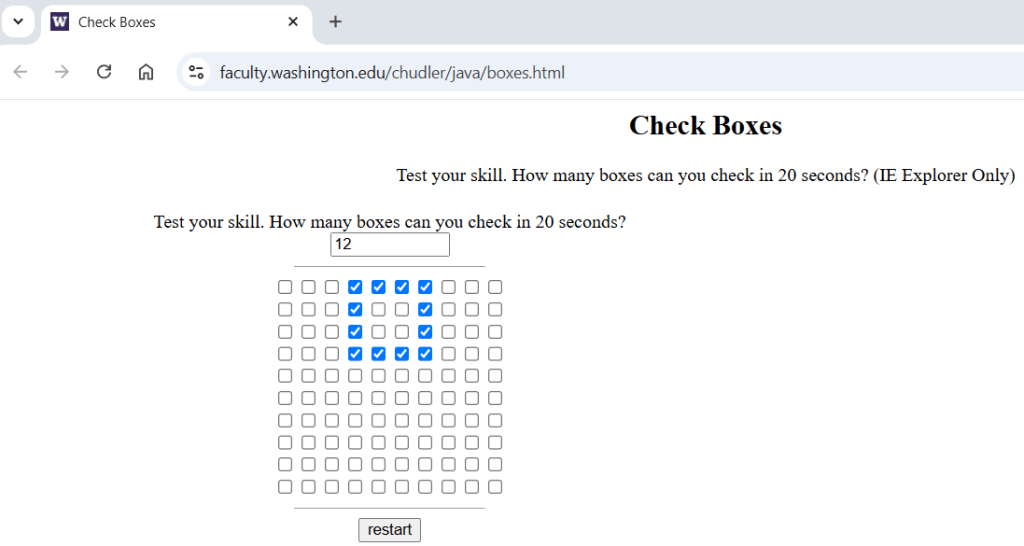
รันโฟลว์แล้วดูผลลัพธ์บนเว็บไซต์จะได้ดังรูปด้านล่าง
หวังว่าบทความนี้จะเป็นประโยชน์นะคะ ไว้พบกันใหม่ Happy Automating!! 😁
 PenBot_RPA
Leave a comment