

Navigate และ Back คือ ฟังก์ชันที่ใช้ในการเปลี่ยนหน้าจอที่แสดง เหมือนกับการที่เรากดเปลี่ยนสไลด์ในโปรแกรม Power Point โดยที่เราสามารถกำหนดได้ว่ากดไปที่ control นี้จะไปยังหน้าจอไหน และสามารถระบุ transition ได้
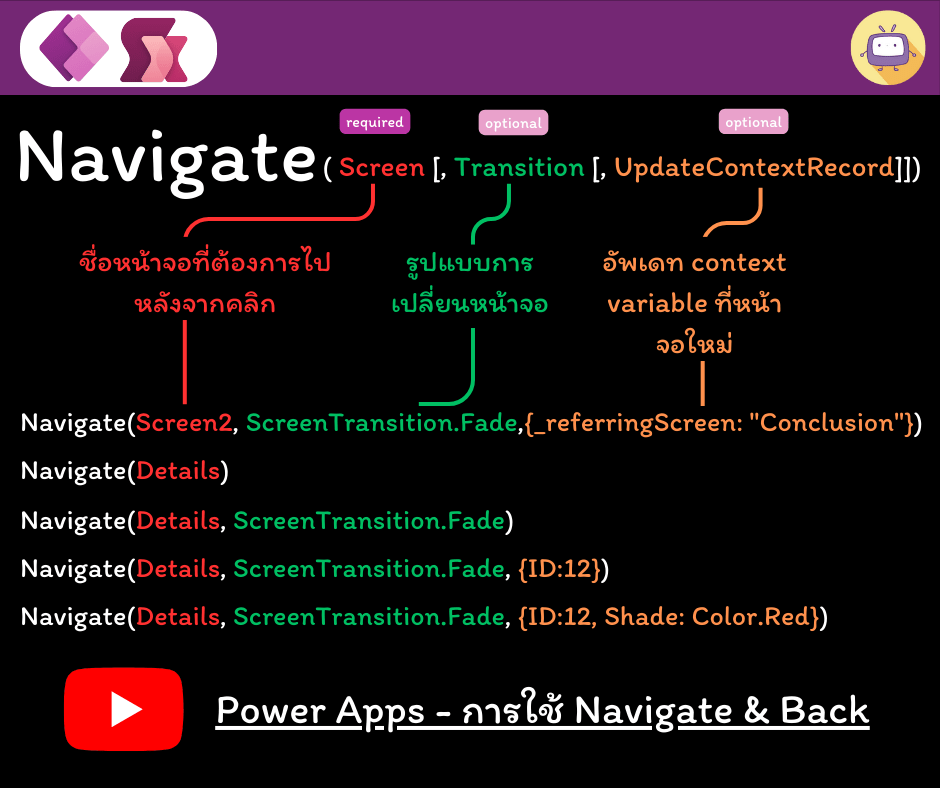
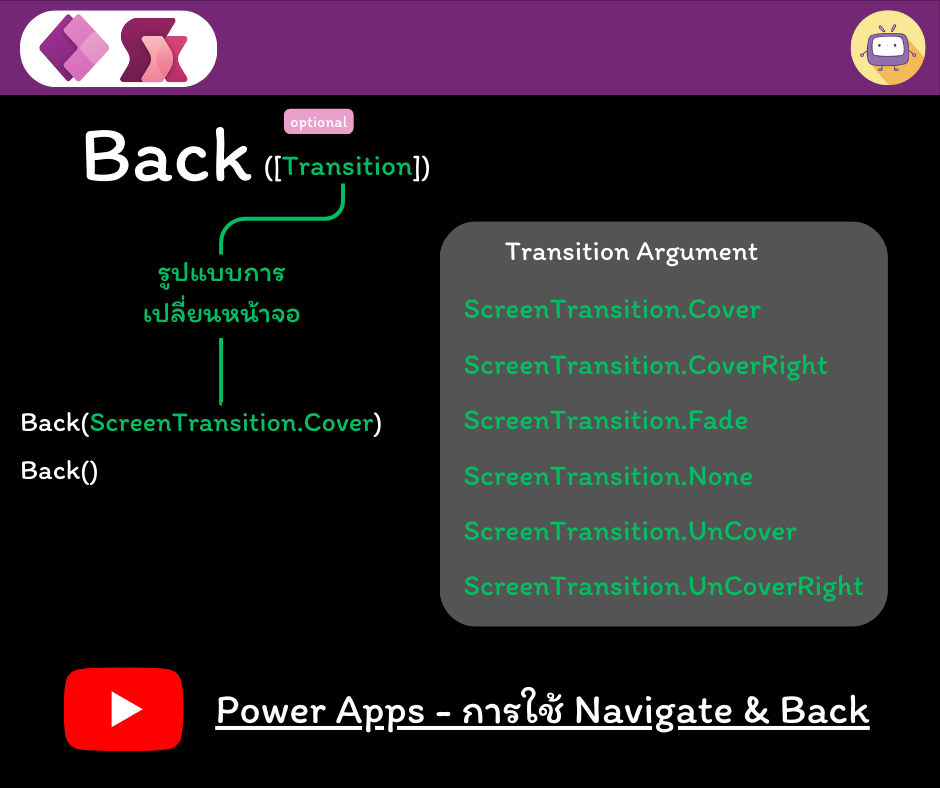
วันนี้จะลองเขียนตามตัวอย่างของไมโครซอฟท์
- สร้าง Blank Canvas Apps
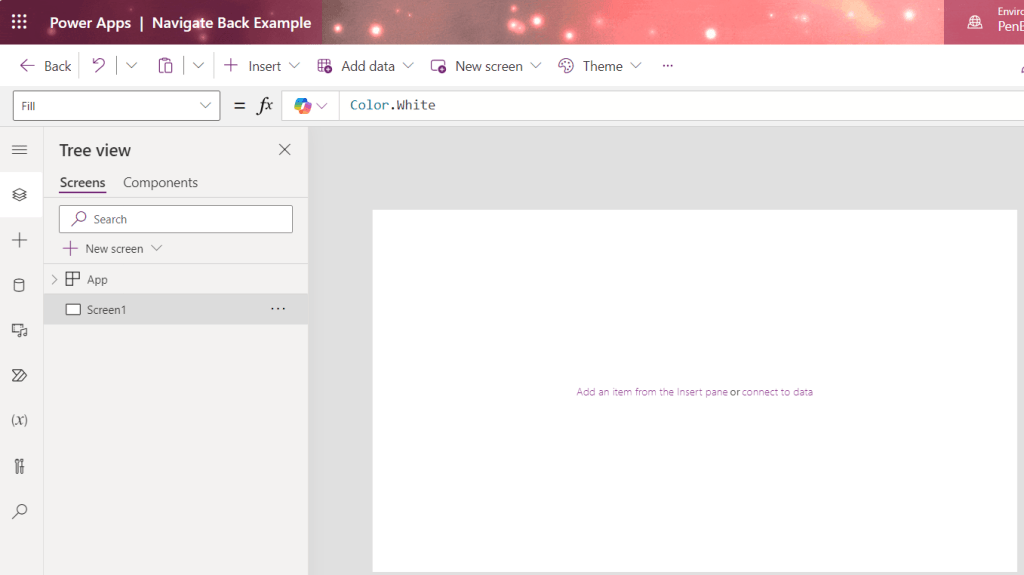
2. New Screen แล้วใส่ Fill properties เป็น
Color.Gray
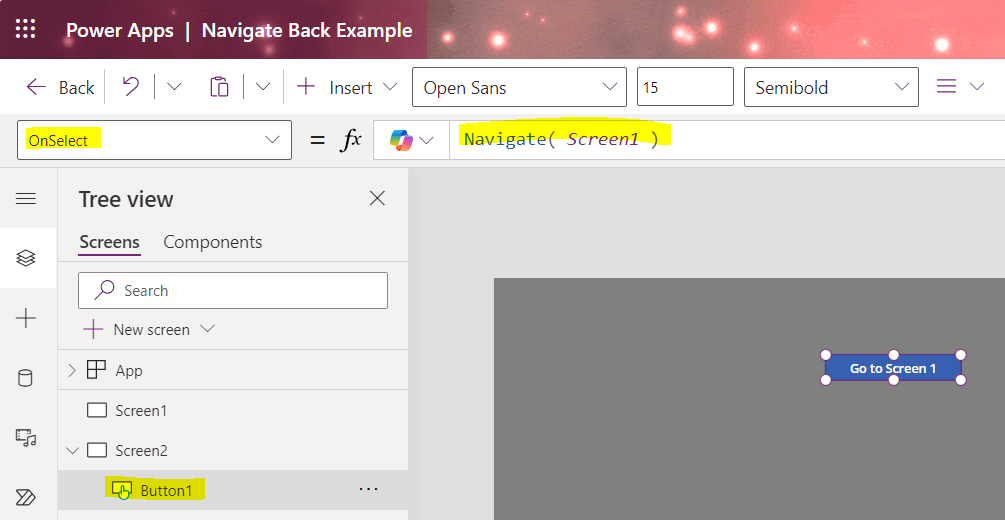
3. Insert > Button ที่ Screen 2 แล้วใส่ OnSelect properties ที่ Button ว่า
Navigate( Screen1 )ถ้าต้องการเปลี่ยนข้อความที่ปุ่มให้แก้ที่ Text properties เช่น “Go to Screen 1”
4. Insert > Button ที่ Screen 1 แล้วใส่ OnSelect properties ที่ Button ว่า
Back()
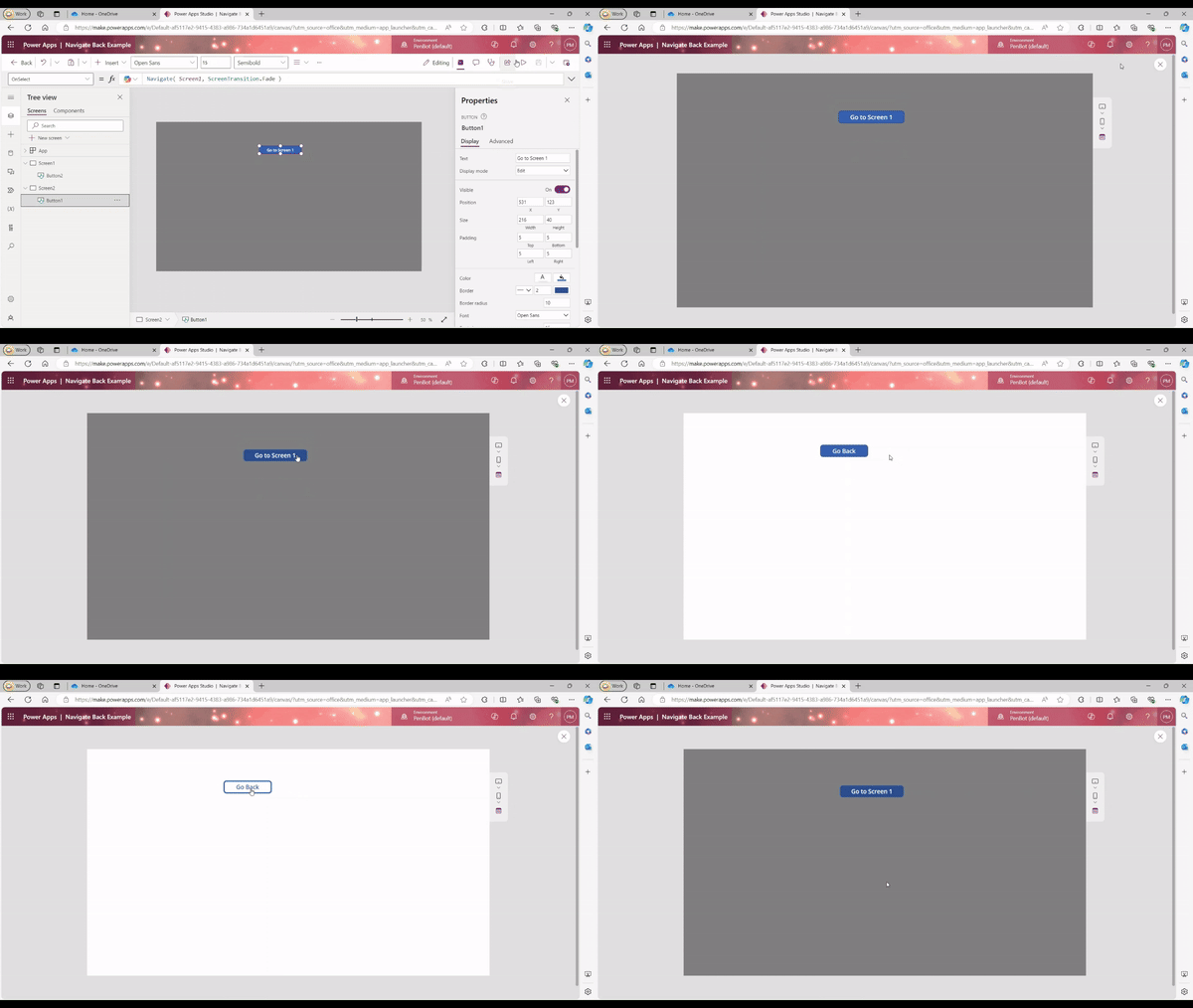
5. ลองกด Preview the app ที่ Screen 2 แล้วกดปุ่ม Go to Screen 1 หน้าจอจะเปลี่ยนจาก Screen 2 ไปที่ Screen 1 จากนั้นกดปุ่ม Go Back หน้าจอจะเปลี่ยนจาก Screen 1 ไปที่ Screen 2

6. ลองใส่ transition แล้วกด Preview the app กดปุ่ม
Navigate( Screen1, ScreenTransition.Fade )
Back( ScreenTransition.Cover )
7. ในหน้าจอที่ 2 ให้ Insert Button แล้วใส่สูตร Navigate ที่มี UpdateContextRecord เช่น
Navigate( Screen1, ScreenTransition.Fade, { ID: 12 , Shade: Color.Red } )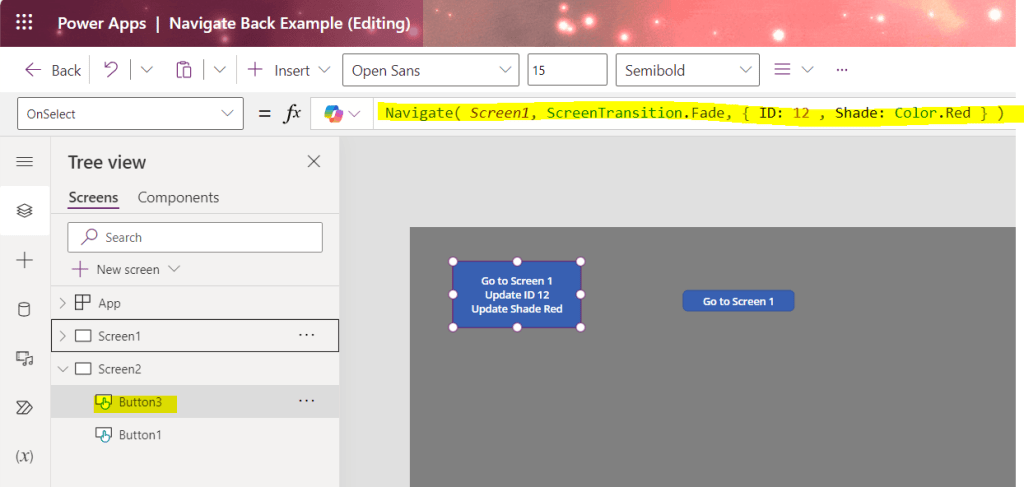
8. ในหน้าจอที่ 1 ให้ Insert Text Label แล้วใส่ข้อความและตัวแปรใน Text properties
"ID = " & ID
9. ในหน้าจอที่ 1 ไปที่ Fill properties แล้วใส่ตัวแปร Shade

10. ไปที่ Screen 2 กด Preview the app แล้วกดปุ่ม Navigate ที่มี UpdateContextRecord จะเห็นค่าตัวแปร ID และ Shade

 PenBot_RPA
Leave a comment