

If you notice that SharePoint displays the year in the Buddhist calendar format (Gregorian year + 543), you can change it by going to “Site information.”

Go to gear icon (at the top right corner) > Site information > View all site setting

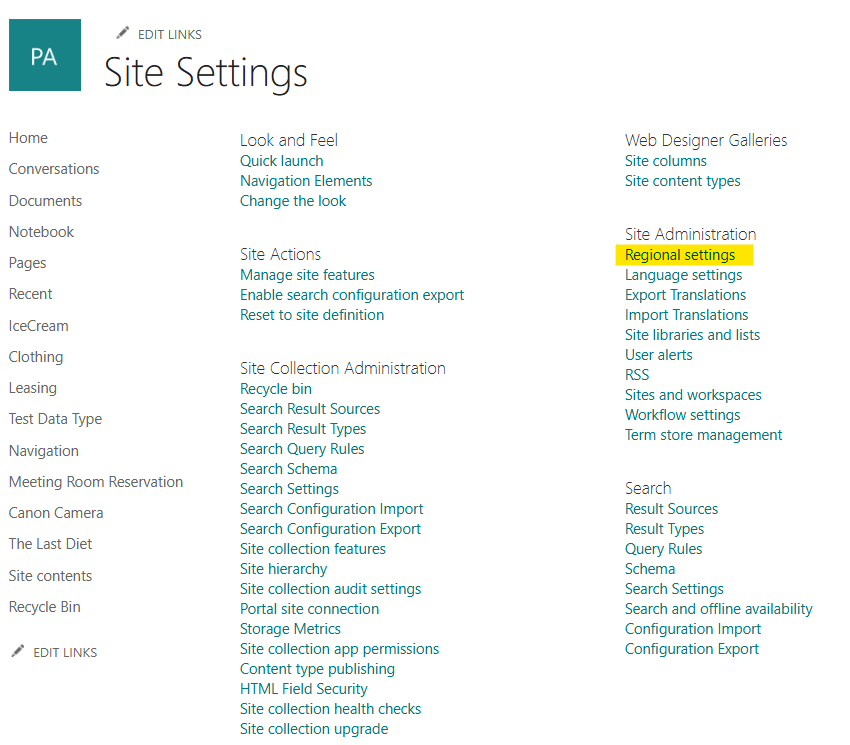
Then, go to “View all site settings”

Go to “Regional settings”
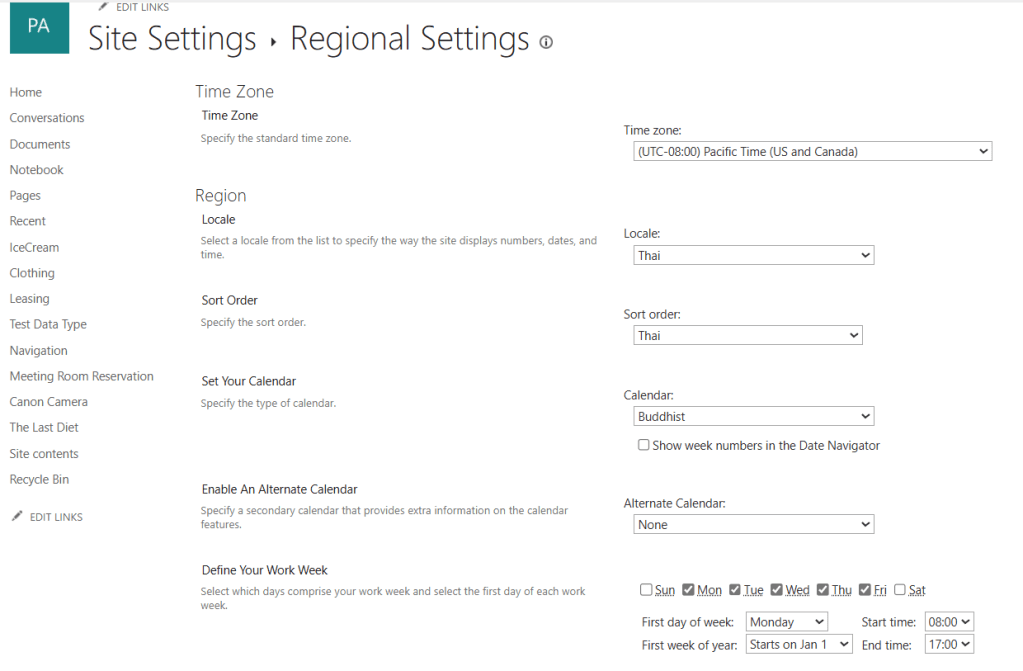
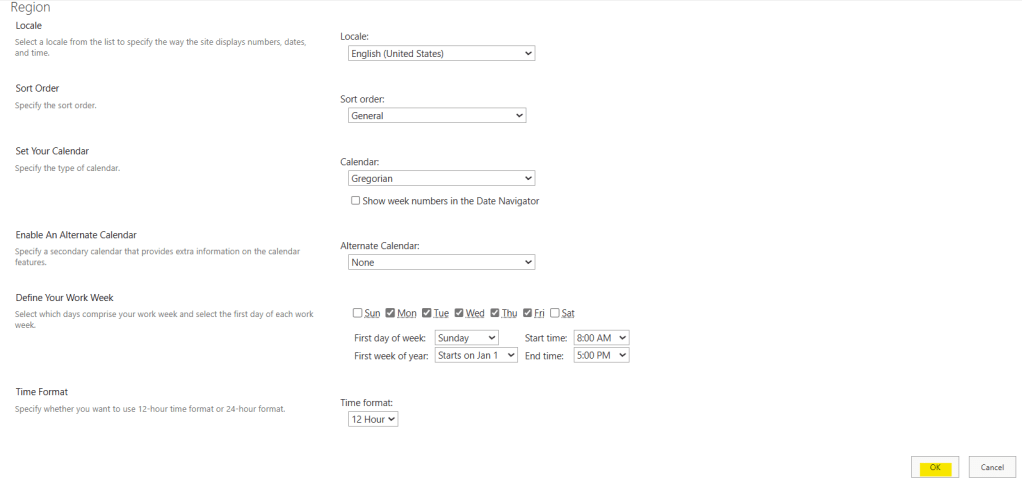
You can change the date format to your preference. In my case, I changed it from the Buddhist calendar format to the Gregorian calendar format.

After making the change, press the OK button.
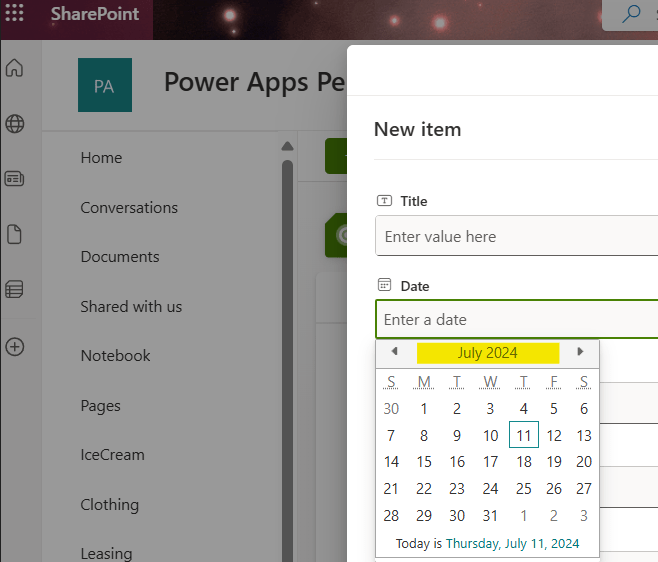
Go back to SharePoint List, and check the result.
 PenBot_RPA
Leave a comment