

What is Main flow & Sub flow ?
Power Automate Desktop Flow consists of
- Main Flow is the flow that is created automaticcally when we build a flow
- Sub Flow is the flow that users can create to organize the work of the flow.
Main Flow will create automatically when we build a desktop flow as per below image:

We can create “Sub Flow” by click Subflows > New subflow and invoke through Run Subflow action

In this article, I would like to use an example of flow that was previously written in Read Excel with Power Automate Desktop to write more easily. (Usually writing a subflow is used in cases where the robot’s workflow is more complicated.)
From the above article, the main flow consists of actions as per below image
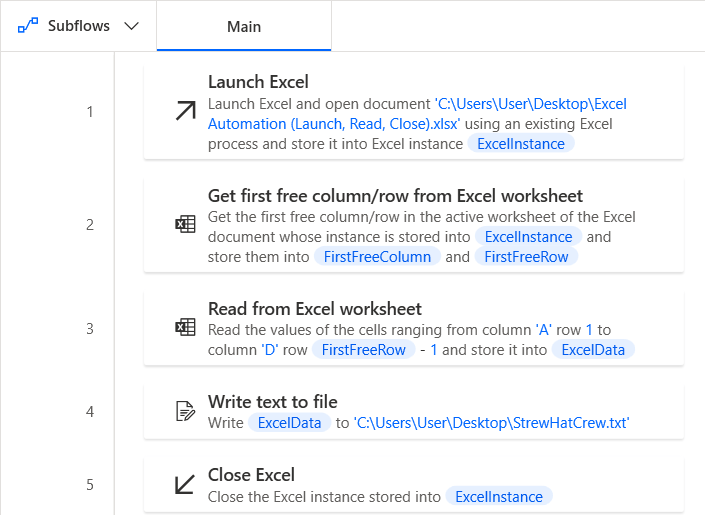
Create Subflow
In this article we will separate actions of each software (Excel, Notepad) to the subflow and add the flow for set variables.
Create Subflow 1 : Click Subflows > New subflow and name as ReadExcel

Create Subflow 2: Click Subflows > New subflow and name as WriteTextToFile

Drag the actions of Excel and drop to Subflow 1 (ReadExcel), then drag the action of Text File to Subflow 2 (WriteTextToFile)
At main flow, add action Run Subflow to the workspace and select subflow that you want to invoke

Create Subflow 3: Click Subflows > New subflow and name as SetVariables
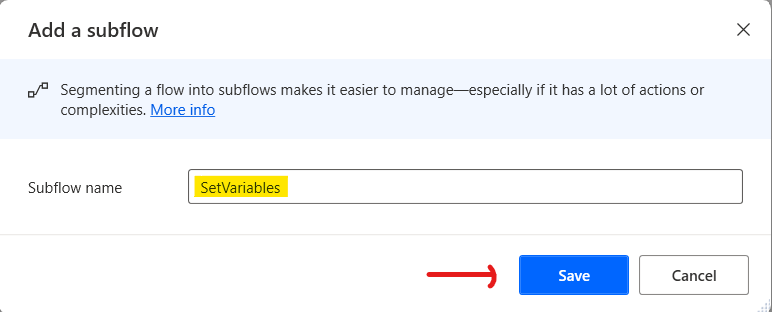
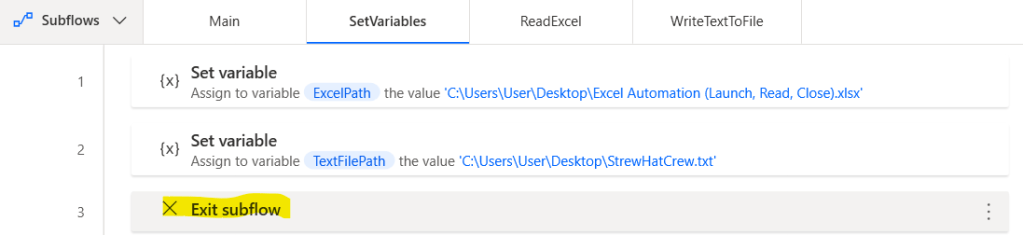
- Drag action “Set variable” to workspace and name as ExcelPath, then paste Excel path in the value
- Drag action “Set variable” to workspace and name as TextWritePath then paste text path in the value

Go to Subflow ReadExcel, revise the Excel path that we hardcode in previous flow to be “ExcelPath” variable

Go to Subflow WriteTextToFile, revise the Text file path that we hardcode in previous flow to be “TextWritePath” variable

At main flow, add action Run Subflow to the workspace and select SetVariables subflow

Add Exit Subflow action in every subflow


Advantage of creating Subflow
- Make main flow cleaner, easy to understand overall process
- Reduce repetitive actions in the main flow by separate the repetitive actions from main flow to subflow, easy to invoke
- Subflow can be used as “Branching”, for example in cases where an error occurs and you have to work in another way
 PenBot_RPA
Leave a comment