

This article I will show how to count the number of cells that meet a criterion; for example, to count the number of gender appears in a gender column.
The Excel file have data with 10 rows, I want to count the number of gender in column E (Excel worksheet named “Sheet1”)
Download Excel File here


Set Variable
Set parameter as follow:
Variable: Excel_File_Path
Value: Please input the Excel Path in your computer for example C:\Users\User\Desktop\TestCountCondition.xlsx

Open SQL connection
Read about Database action here

You can use Connection string as per below code block:
Provider=Microsoft.ACE.OLEDB.12.0;Data Source=%Excel_File_Path%;Extended Properties="Excel 12.0 Xml;HDR=YES";Execute SQL statement
Below code block is a basic SQL for select all column in the table Sheet1
SELECT *
FROM [Sheet1$]
You can set the parameter in Power Automate Desktop as per below image (Select All Column in Table Sheet1)

Now, I will write SQL statement for count the number of gender appears in a gender column. In SQL language, we will use COUNT() WITH GROUP BY as per below code block:
SELECT
    gender,
    COUNT(id) AS id_count
FROM [Sheet1$]
GROUP BY gender
You can set the parameter in Power Automate Desktop as per below image (COUNT() WITH GROUP BY)

Close SQL Connection

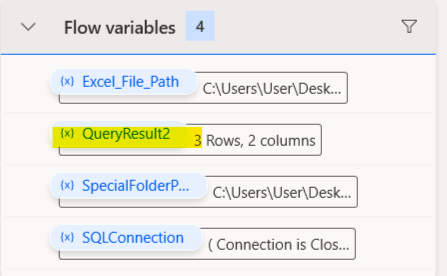
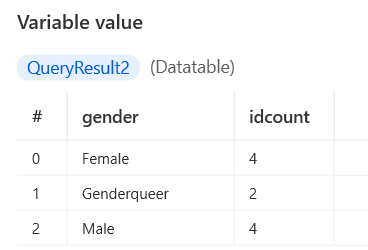
Then, press save button and run the flow. After the flow run successfully click variable QueryResult2 in the variable tab
Result
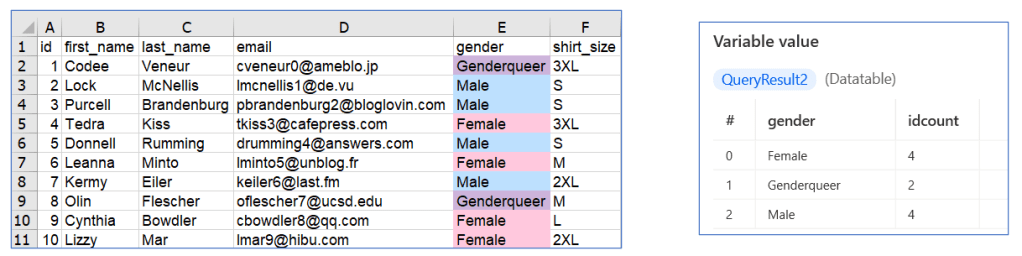
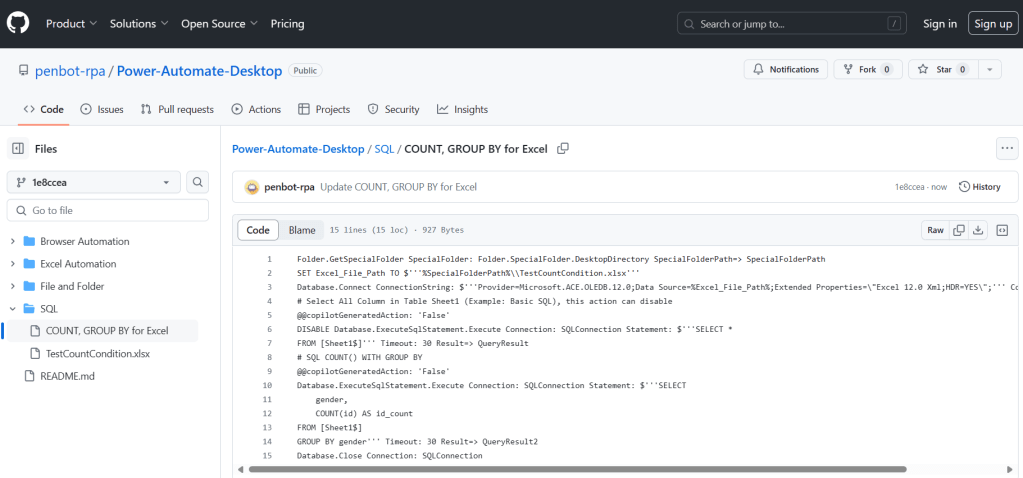
You can copy code from Github to Power Automate Desktop and download Excel file here
Paste Excel file at your desktop and run the flow
 PenBot_RPA
Leave a comment