

โจทย์ในครั้งนี้คือเรามีไฟล์ Excel ที่มีข้อมูล 10 บรรทัด โดยเราต้องการนับจำนวนคนว่ามีเพศต่างๆ กี่คน (Column E) โดย Worksheet ที่เก็บข้อมูลนี้ชื่อ “Sheet1”
Download Excel File ที่นี่


Set Variable
ตั้งชื่อตัวแปร Excel_File_Path แล้วใส่ Excel Path

Open SQL connection
อ่านรายละเอียดเพิ่มเติมเกี่ยวกับ Database action ที่นี่

ใส่ Connection string ตามด้านล่าง ได้เลย โดยเราจะใช้ตัวแปร Excel_File_Path ใส่ไปที่ Data Source ใน Connection string เลย)
Provider=Microsoft.ACE.OLEDB.12.0;Data Source=%Excel_File_Path%;Extended Properties="Excel 12.0 Xml;HDR=YES";Execute SQL statement
อันดับแรกเพ็ญจะเขียน SQL แบบพื้นฐานให้ดูก่อน เพื่อเลือกทุกคอลัมน์ในตาราง Sheet 1
SELECT *
FROM [Sheet1$]
การตั้งค่าใน Power Automate Desktop (Select All Column in Table Sheet1)

คราวนี้เราจะเขียน SQL เพื่อตอบโจทย์ การนับจำนวนคน โดยแยกตามเพศ
SELECT
    gender,
    COUNT(id) AS id_count
FROM [Sheet1$]
GROUP BY gender
การตั้งค่าใน Power Automate Desktop (COUNT() WITH GROUP BY)

Close SQL Connection

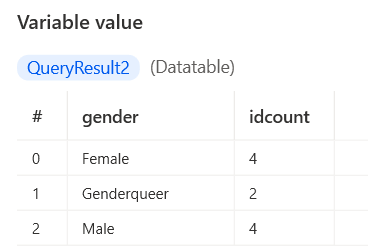
คลิก Save แล้วกดรัน flow เมื่อรันเสร็จให้คลิกที่ตัวแปร QueryResult2 ใน variable tab

Result

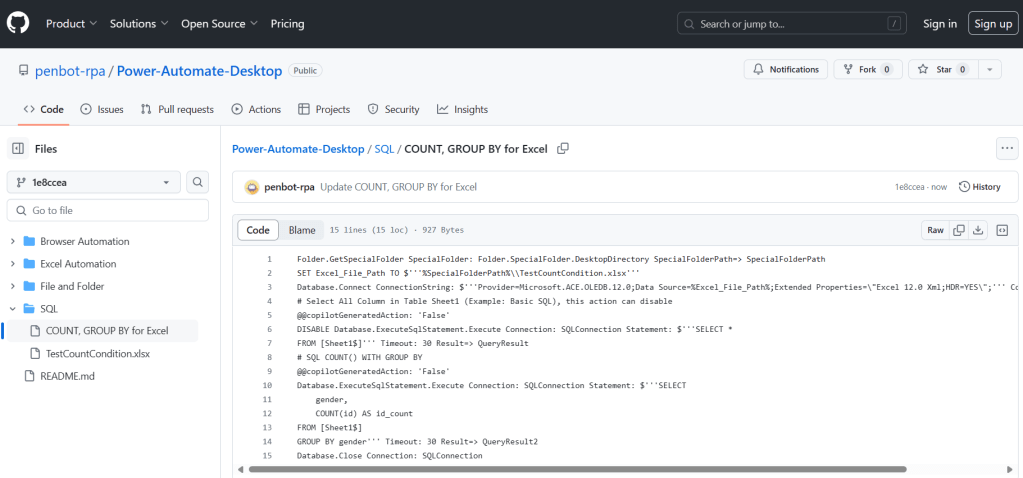
สามารถ Copy code จาก Github แล้วนำไปวางที่ Power Automate Desktop
 PenBot_RPA
Leave a comment