

ใน Power Apps สามารถสร้าง People Picker โดยใช้ Office 365 Users Connector ได้
อ่านรายละเอียดเพิ่มเติมเกี่ยวกับ Office 365 User connector ที่นี่
ไปที่ tab “Data” กดปุ่ม “Add Data” แล้วค้นหา connector “Office 365 Users”
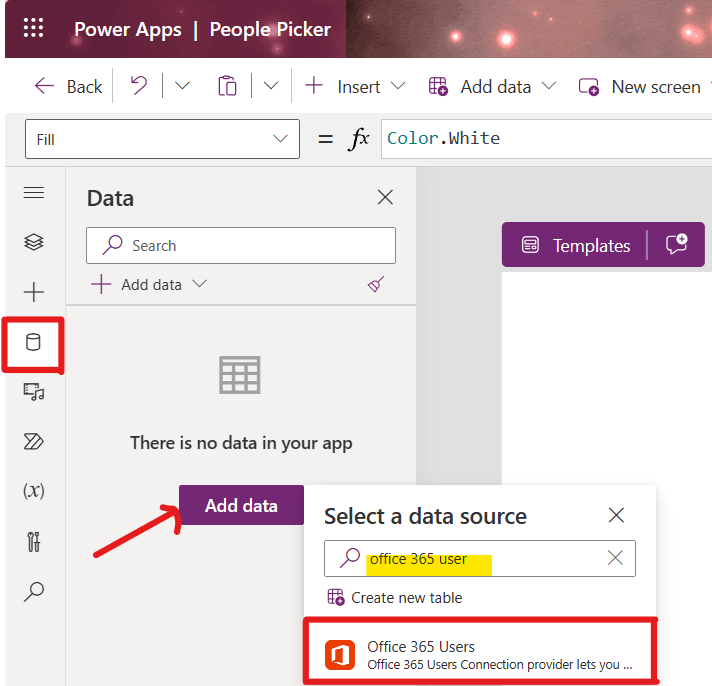
เมื่อเรา Add data Office 365 Users connector แล้ว ให้ Insert control “Combo box”

ที่ Properties ของ Combo box (Dropdown ทางด้านซ้ายบนของหน้าจอ) ให้เลือก “Items” Properties

เราจะเขียนสูตร Office365Users.SearchUserV2 ซึ่งมี syntax ดังนี้
Office365Users.SearchUserV2({searchTerm:Text, top:Number, isSearchTermRequired:Boolean, skipToken:Text})
อ่านรายละเอียด parameter ต่างๆ ของ SearchUserV2 ที่นี่
ในที่นี้เราจะไม่ได้เขียนสูตรโดยใช้ ทุก parameter และมีการใช้สูตร Trim ใน parameter searchTerm
Office365Users.SearchUserV2({searchTerm:Trim(Self.SearchText), isSearchTermRequired:false})ตั้งค่า Allow multiple Selection, Allow Searching

กด Edit Fields แล้วตั้งค่าตามรูป
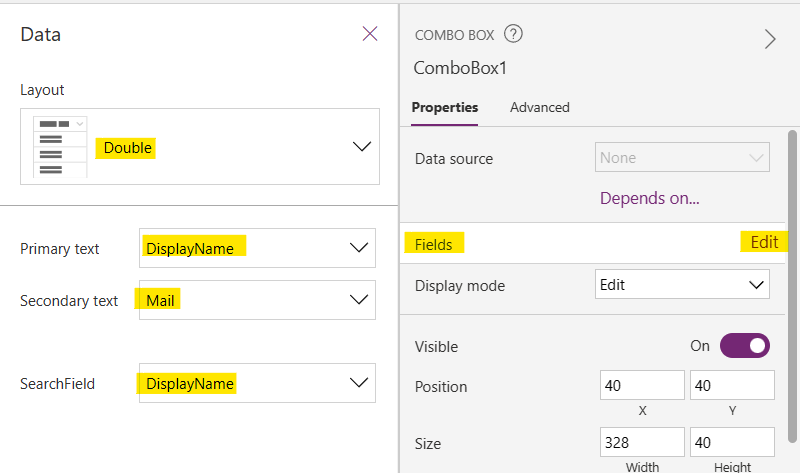
ถ้าต้องการให้ Search ได้หลายอย่าง เช่น ค้นหาด้วย DisplayName ค้นหาด้วย mail ให้ปรับค่าที่ Advanced > SearchFields ตามด้านล่าง

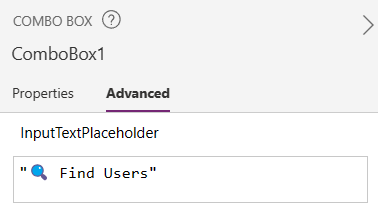
ที่ Combo box จะมี Properties ชื่อ InputTextPlaceholder อยู่ เราสามารถแก้ไขข้อความนี้ได้ ค่าตั้งต้นจะเป็นคำว่า “Find items”

ให้ไปที่ Advanced tab หา InputTextPlaceHolder


กด Preview แล้วลองค้นหา Users

ถ้าต้องการ Filter ให้มีแค่ account ที่ Active และมีแค่ Internal Users ให้เขียนสูตร
Filter(Office365Users.SearchUserV2(
    {
        searchTerm: Trim(Self.SearchText),
        isSearchTermRequired: false
    }
).value,
AccountEnabled = true && Not("#EXT" in UserPrincipalName))
กด Preview แล้วลองค้นหา Users

 PenBot_RPA
Leave a comment