

สมมุติว่าเราใช้ Power Automate Desktop เพื่อ download ไฟล์จาก Internet แล้วต้องการตั้งชื่อไฟล์ที่เพิ่ง download ให้มีวันที่และเวลาในชื่อไฟล์
Get files in folder
ใช้คำสั่ง Get files in folder แล้วตั้งค่าตามรูป เพื่อดึงไฟล์ทุกประเภทในโฟลเดอร์ Download แล้วเรียงตาม Creation time แบบ Descending
คำสั่งนี้จะได้ output เป็น list ของไฟล์ เก็บอยู่ในตัวแปรชื่อ Files โดยที่ไฟล์ล่าสุดถูกเก็บอยู่ใน index 0


Display message
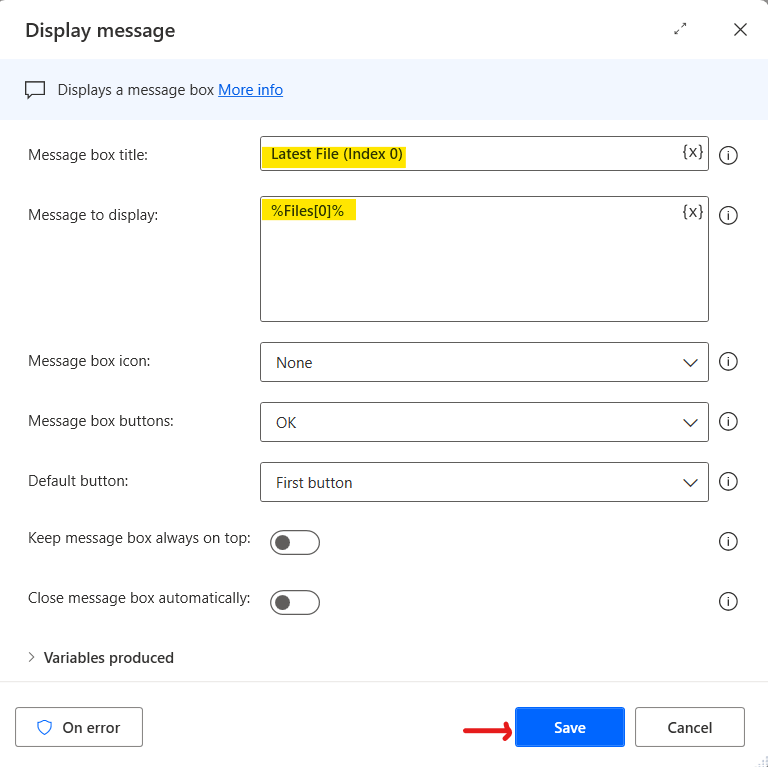
ใช้คำสั่ง Display message เพื่อเช็คค่า Index 0 ในตัวแปร Files
Get current date and time
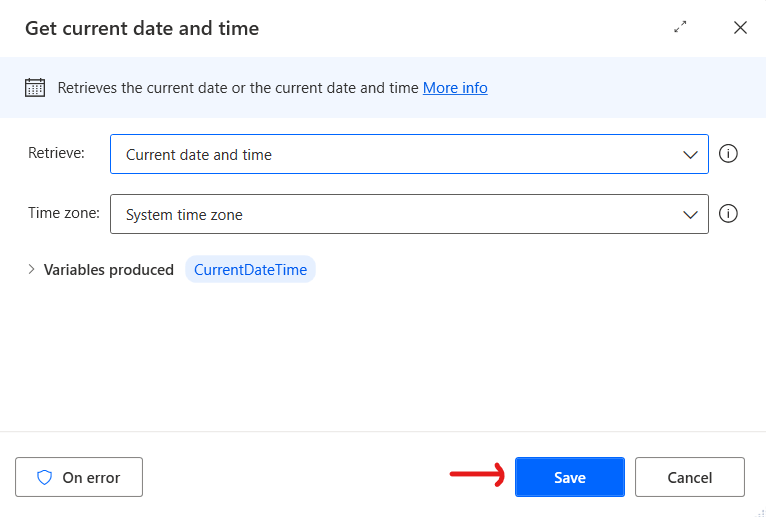
ลากคำสั่ง Get current date and time มาวางแล้ว Save จะได้วันที่และเวลาเก็บในตัวแปร CurrentDateTime
Convert datetime to text
ลากคำสั่ง Convert datetime to text มาวางแล้ว ตั้งค่า parameter ตามด้านล่าง
- Datetime to convert: ตัวแปร CurrentDateTime ที่ได้จากคำสั่ง Get current date and time
- Format to use: Custom
- Custom Format: ใส่รูปแบบวันที่เวลาที่ต้องการ เช่น yyyy-MM-dd-hhmmsstt เมื่อเราพิมพ์ format จะมีตัวอย่างแสดงขึ้นมาที่ Sample (สามารถใช้ Format แบบอื่นได้ตามต้องการแต่ต้องไม่มี Illegal file name character เช่น \ / : * ? ” < > |)
คำสั่งนี้จะได้ output เป็นวันที่และเวลาที่ถูกแปลงเป็นข้อความเก็บในตัวแปร FormattedDateTime

Rename file(s)
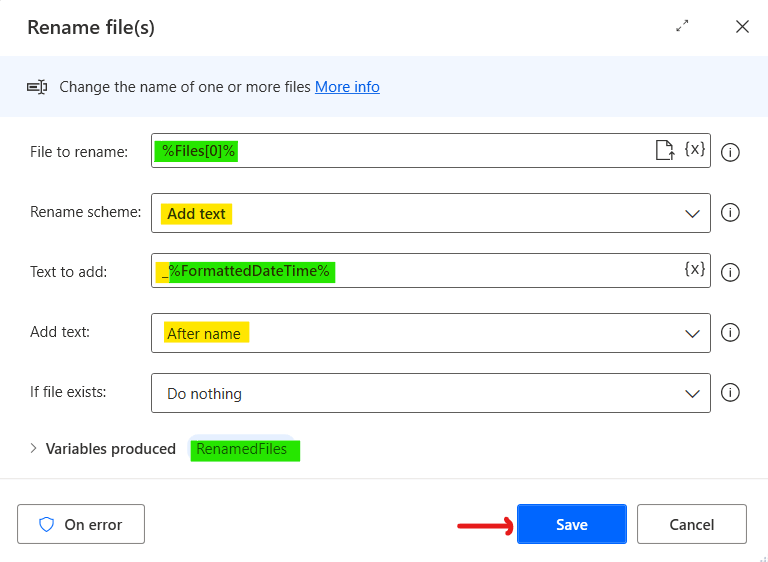
ลากคำสั่ง Rename file(s) มาวางแล้วตั้งค่า parameter ตามด้านล่าง เพื่อ rename ไฟล์ที่เพิ่งสร้างล่าสุด โดยการเติมสัญลักษณ์ _ ตามด้วยวันที่และเวลา ต่อท้ายชื่อเดิมของไฟล์นั้น
ชื่อไฟล์ที่เปลี่ยนจะถูกเก็บในตัวแปร list ชื่อ RenamedFiles
Display message
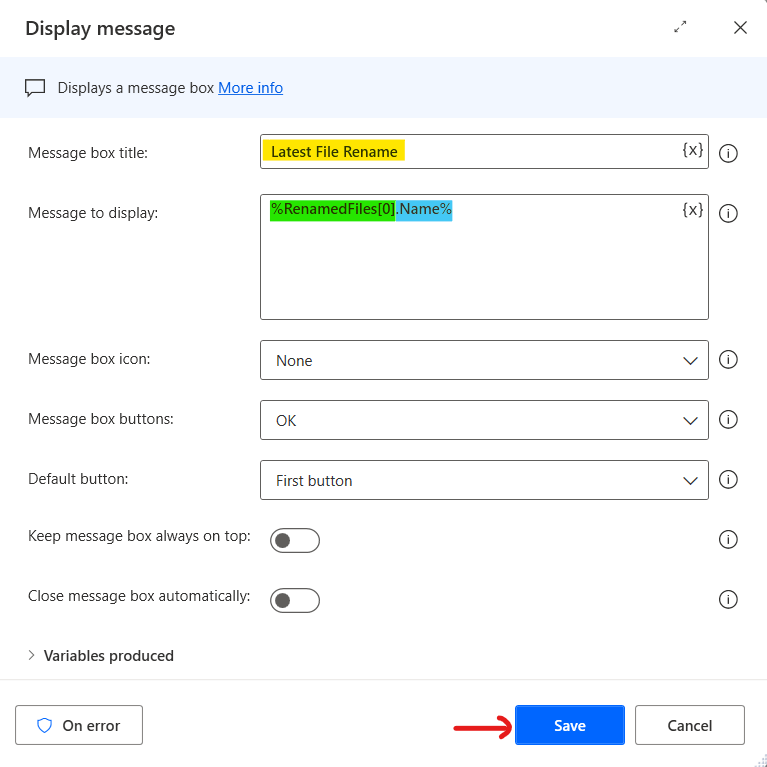
ใช้คำสั่ง Display message เพื่อเช็คค่า Index 0 ในตัวแปร RenamedFiles และเลือก properties Name โดยพิมพ์ %RenamedFiles[0].Name% ที่ Message to display (ถ้าใช้ properties Name จะแสดงเฉพาะชื่อไฟล์ ถ้าใช้ properties Fullname จะแสดง File path)
Move file(s)
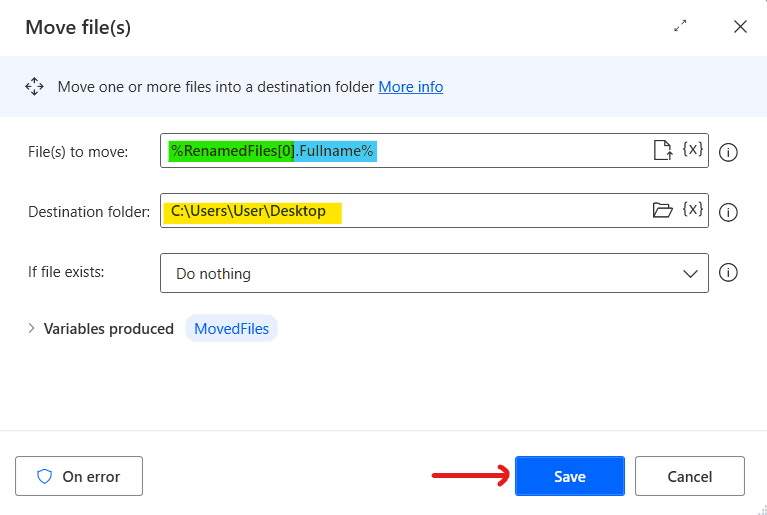
ย้ายไฟล์ที่ renamed ไปที่โฟลเดอร์ที่ต้องการด้วยคำสั่ง Move file(s) และเลือก properties Fullname โดยพิมพ์ %RenamedFiles[0].Fullname% ที่ File(s) to move
Completed Flow

Check Result
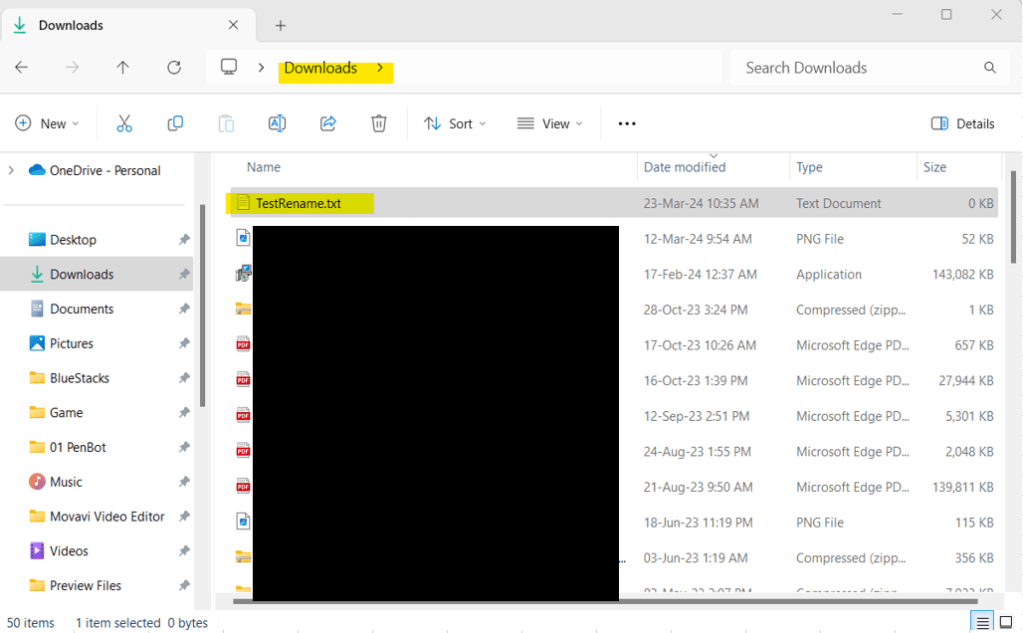
ไปที่ Dowload folder แล้วสร้างไฟล์ใหม่ขึ้นมา ตั้งชื่อว่า TestRename.txt
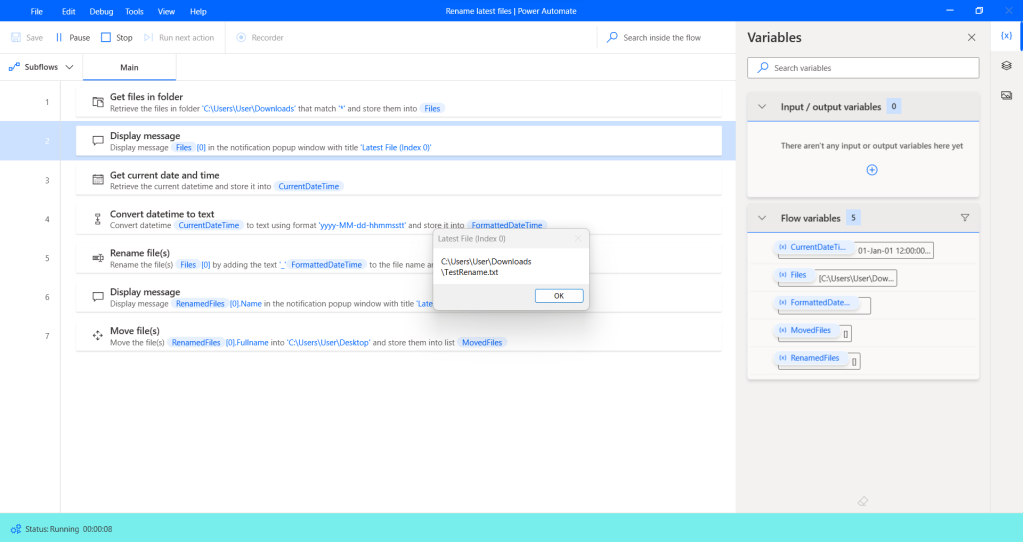
ไปที่ Power Automate Desktop กด Save และกด Run ที่ Display message บรรทัด 2 จะได้ C:\Users\User\Downloads\TestRename.txt
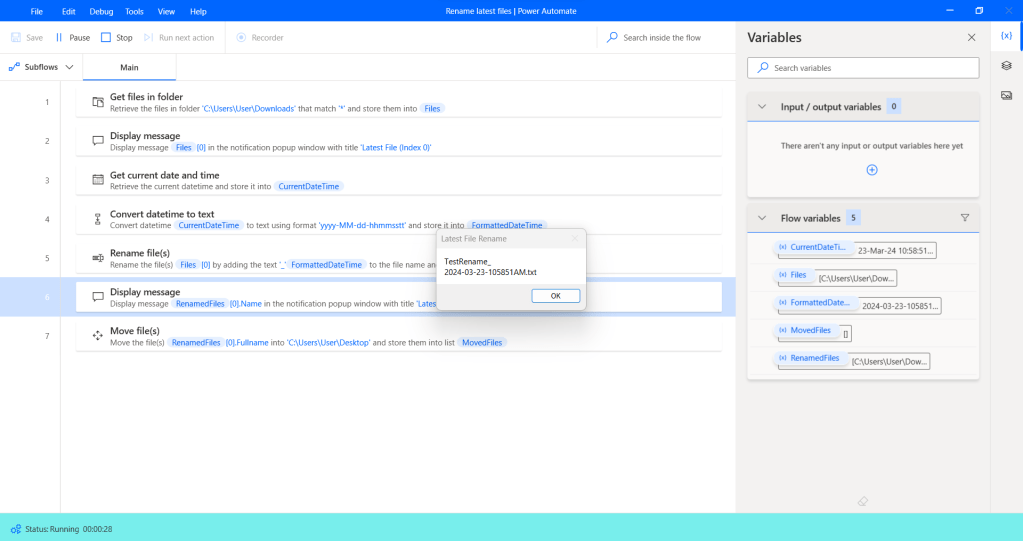
ที่ Display message บรรทัด 6 จะได้ Name ของไฟล์ที่เปลี่ยนชื่อ คือ TestRename_2024-03-23-105851AM.txt
ไปที่ Destination folder (ในที่นี่คือ Desktop) จะพบไฟล์ที่สั่งให้โรบอท Renamed

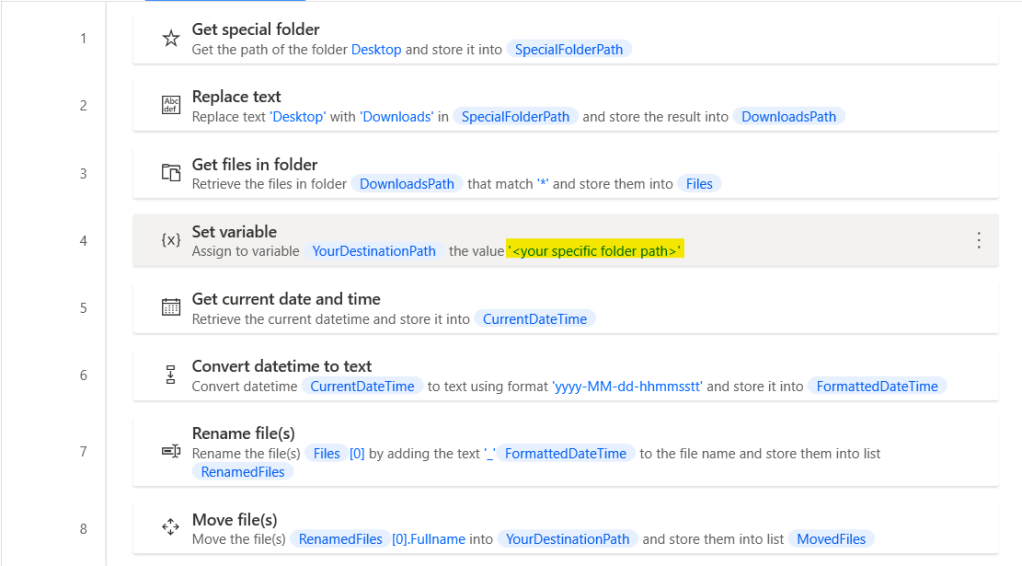
Edited Flow for Ready to Use
สามารถ copy code นี้ไปลองใช้ได้ที่ github
คำอธิบายก่อนจะเป็นโฟลว์ใน github แก้ไขเพิ่มเติมดังนี้
- บรรทัด 1 ใช้คำสั่ง Get Special folder เพื่อหา Desktop และชื่อคอมพิวเตอร์
- บรรทัด 2 แทนที่คำว่า Desktop ด้วย Downloads โดยใช้คำสั่ง Replace text เพราะในคำสั่ง Get special folder ไม่มี Downloads ให้เลือก
- บรรทัด 3 ใช้ตัวแปรแทนการพิมพ์ Downloads Path ตรงๆ เพราะคอมพิวเตอร์แต่ละคนใช้ชื่อไม่เหมือนกัน
- บรรทัด 4 ให้ใส่ Destination Path ที่ต้องการย้ายไฟล์ลงไป
- บรรทีด 5 และ 9 สามารถลบทิ้งได้


 PenBot_RPA
Leave a comment